About
This article explains how to reset your password if you forgot it.
Reset your password
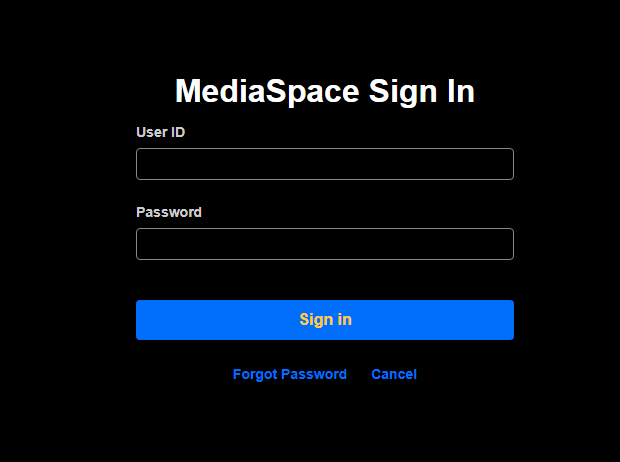
- Click Forgot Password in the Sign-In window.
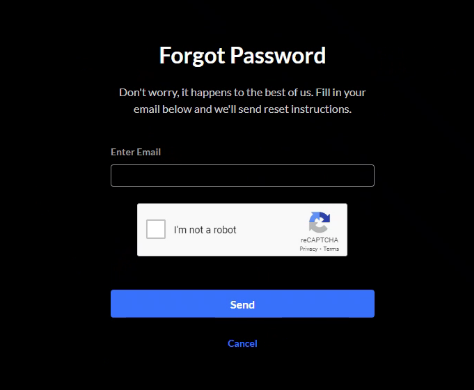
- Enter your email address, check the box "I'm not a robot" and click Send.
- Check your email and follow the instructions to create your new password.
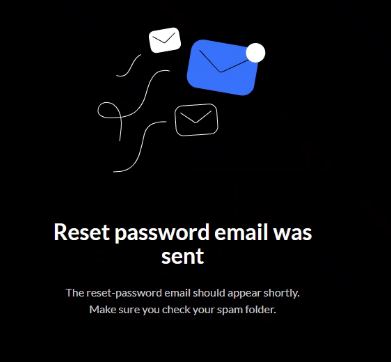
Make sure that the email address you enter in the Forgot Password field is the email associated with your account. If your email address exists in our system, you'll receive an email with the link to reset your password.
Be sure to check your spam or junk folders. If you don't receive an email with reset password instructions, please contact support at Customer Care Portal.
For the Forgot Password setup, visit Auth module.
