About
The alignment service (ordering captions based on a transcript file) synchronizes a provided transcript (.txt) with the audio or video content. This is useful for scripted videos, such as training content, where the speaker reads from prepared text.
Upload a transcript as a .txt file, and the system matches the text to the timing of the spoken words in the video. When the speaker closely follows the script, the result is highly accurate captions.
These instructions are for non-Theming users. If you have Theming enabled on your account, please see our article Order alignment in Video Portal - Theming.
Access the Captions & enrich service
- Select My Media from the video portal user menu.
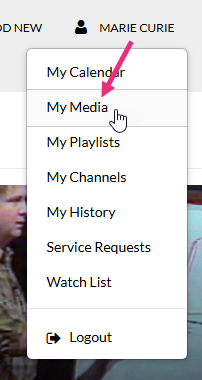 The My Media page displays.
 - Check the box(es) next to the desired video(s).
You can order the service for multiple videos at a time if needed.
- Select Caption & Enrich from the Actions menu.
 The
The 
The Order Captions & Enrichment Services window displays.

Ordering can also be done for a single video from the Actions menu on that video's Media Page, as shown below:
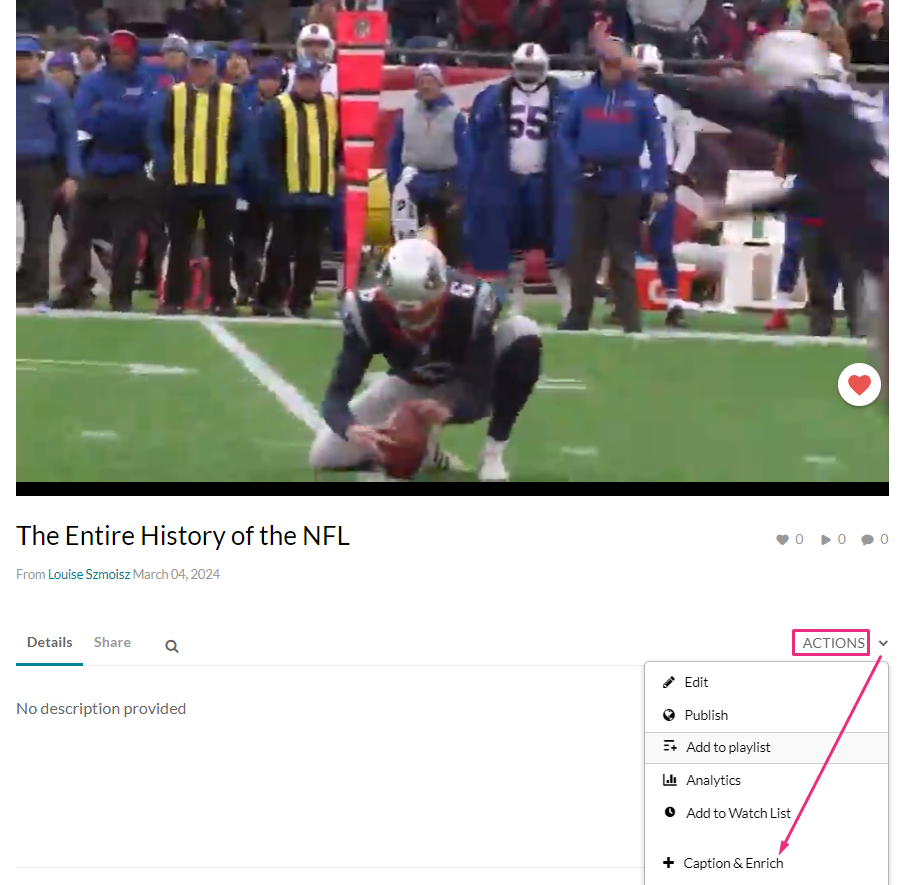
Order alignment
- Complete the fields as follows:
- Service - Select Machine.
- Source Media Language - Select the language from the drop-down menu.
- Feature - Select Alignment.
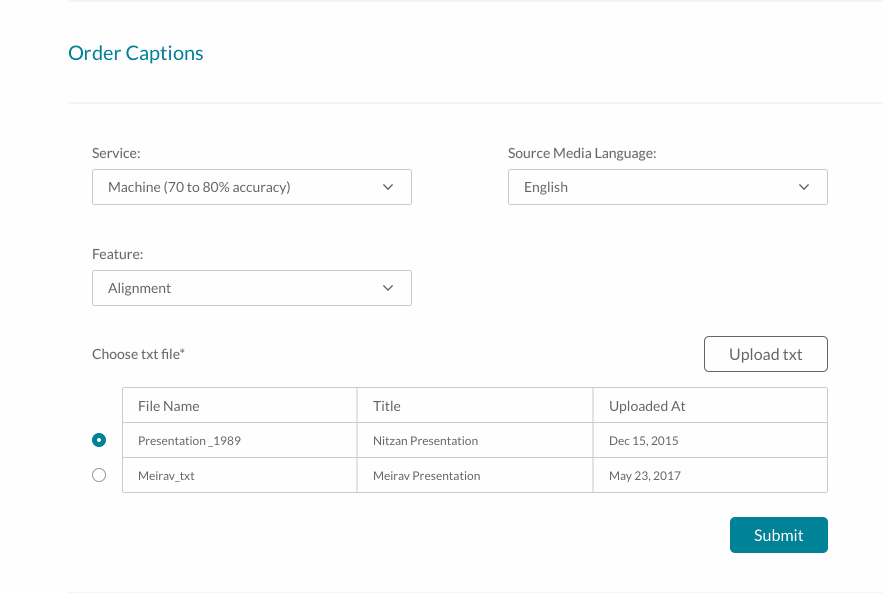
A list of txt files displays. The first file is automatically chosen. If there are no txt files, a message displays: No files were found.
- Choose a txt file from the list of existing files (only one file can be selected) or click Upload txt to upload a new file.
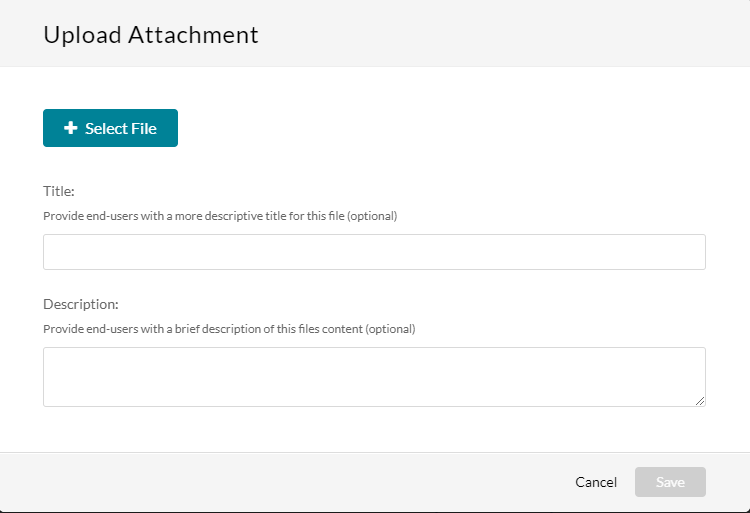
- Complete the Title and Description fields.
- Click Save.
The Upload Attachment window displays.
Your request is generated, and a success message displays. The system will align the text with the video and will provide a caption file (SRT/DFXP).
