About
Kaltura content moderation lets users report content that may violate your organization’s guidelines. Administrators can review reported content and decide whether to approve or reject it.
How users flag content
The moderation flag icon displays in the upper-right corner of an entry.

Users can click the icon and select a reason for reporting the content.
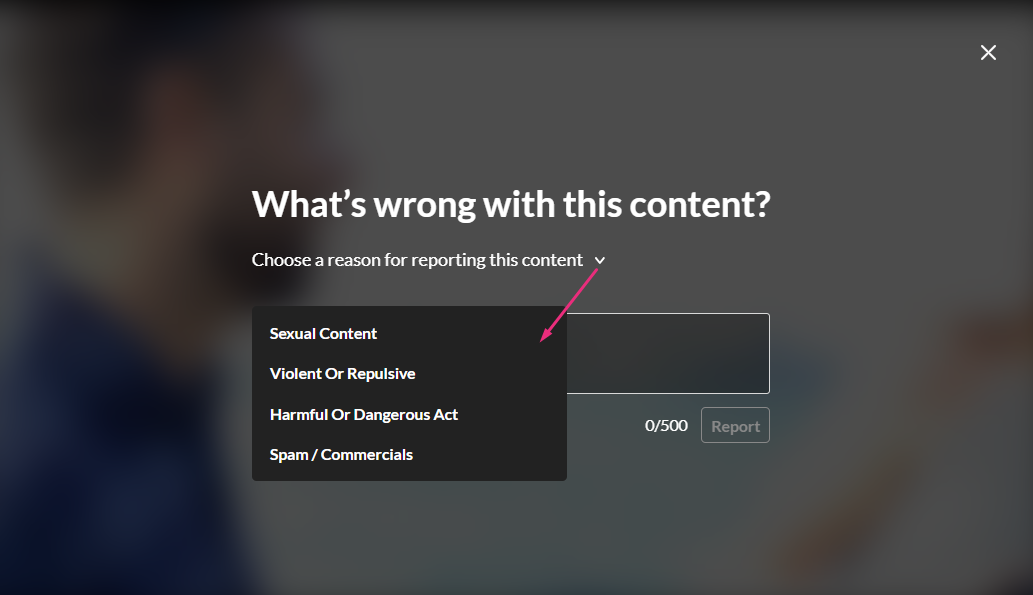
The flagged entry then appears on the Moderation page in Rich Media CMS, where an administrator can review the report and approve or reject the entry.
The Moderation plugin must be enabled on the player.
The following video displays how to manage moderated content
Access the Moderation page
- Log into your Rich Media CMS.
- Click the Moderation tab.
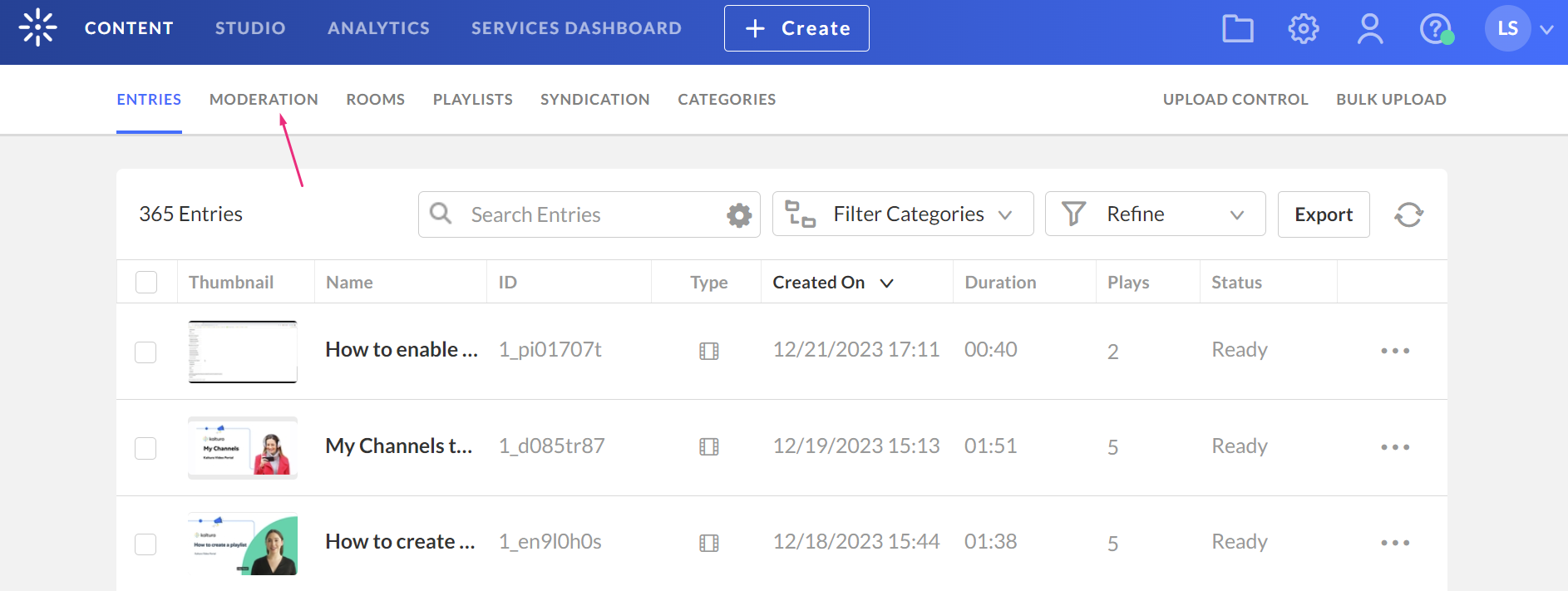
The moderation page displays.
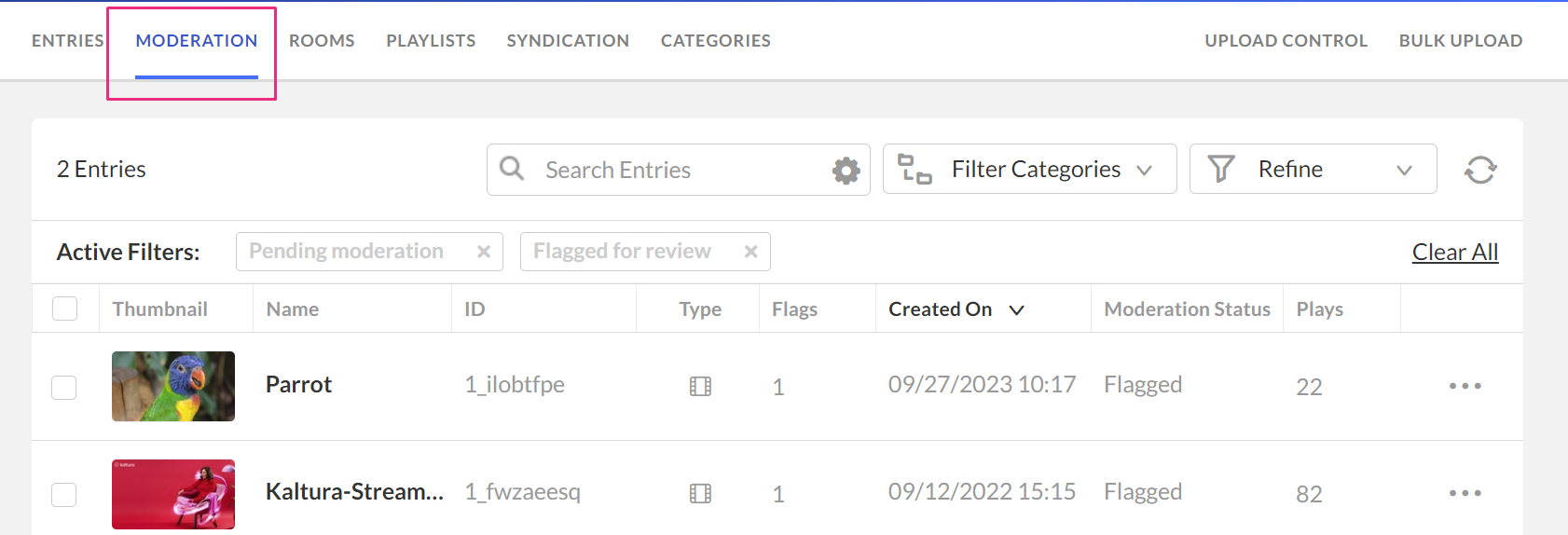
This page displays a list of all content that has been flagged by users. By default, the list is filtered and sorted according to the number of flags that each entry has received.
You can sort the list by clicking the headings of the various columns.
You can also use the search and filters options at the top of the page to filter your moderation entry list according to various parameters and search criteria.
View moderation reports & details
- On the Moderation page, click the three dots at the end of the row.
- Select Reports & details.

The Entry Reports window opens.
View report information
Report tab – Shows how many times the entry was flagged, including the date, time, and reason for each report.

View entry details
Details tab – Shows entry information such as name, entry ID (click to view metadata), media length, number of plays, moderation status, and creator.

Take action on a flagged entry
From the Entry Reports window, you can:
- Click Approve Entry to approve the content. The moderation status changes to Approved.
- Click Reject Entry to reject the content. Rejected entries are hidden from the Entries list and the status changes to Rejected.
- Click Ban Creator to block the content owner. A confirmation message displays. Click OK to continue.
- Click Cancel to return to the Moderation page.
Approve or reject entries in bulk
You can reject or approve more than one entry at a time for entries appearing on the same page of the main list.
- Check the boxes next to the relevant entries.
- The Select Action drop-down menu displays.
- Click Approve or Reject.
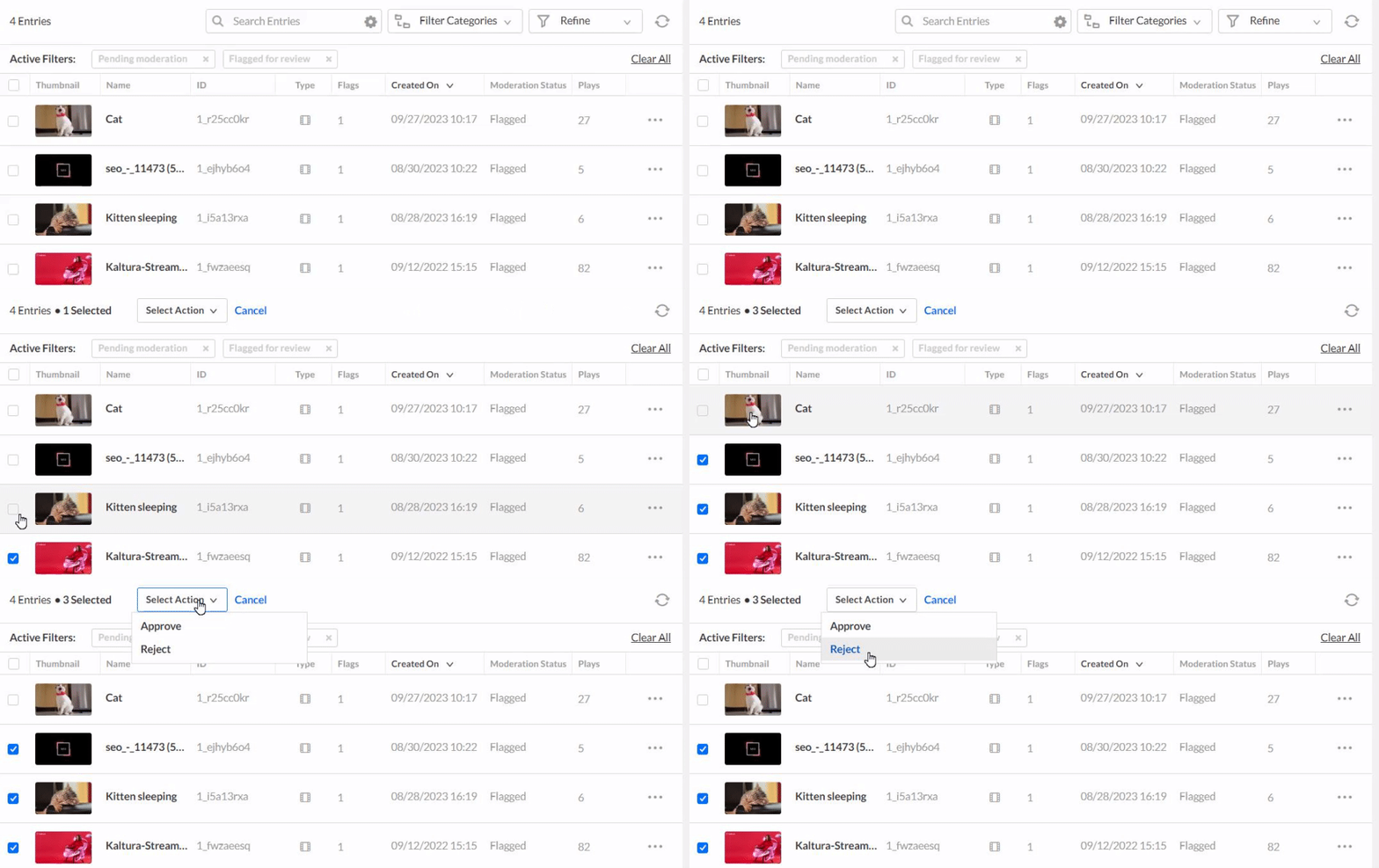
The moderation status updates.
Find and delete moderated entries
You can’t permanently delete entries from the Moderation page. To delete them, go to the Entries page and filter the list by moderation status, as follows.
- Click the Entries tab.
- Click the Refine menu to open the filter options.
- Expand Moderation Statuses, and then select Approved or Rejected.
- Select the checkboxes next to the entries you want to delete.
- Click the trash can icon at the top of the page.
- Click Yes.

The Entries page displays.


Entries matching the selected moderation status display.

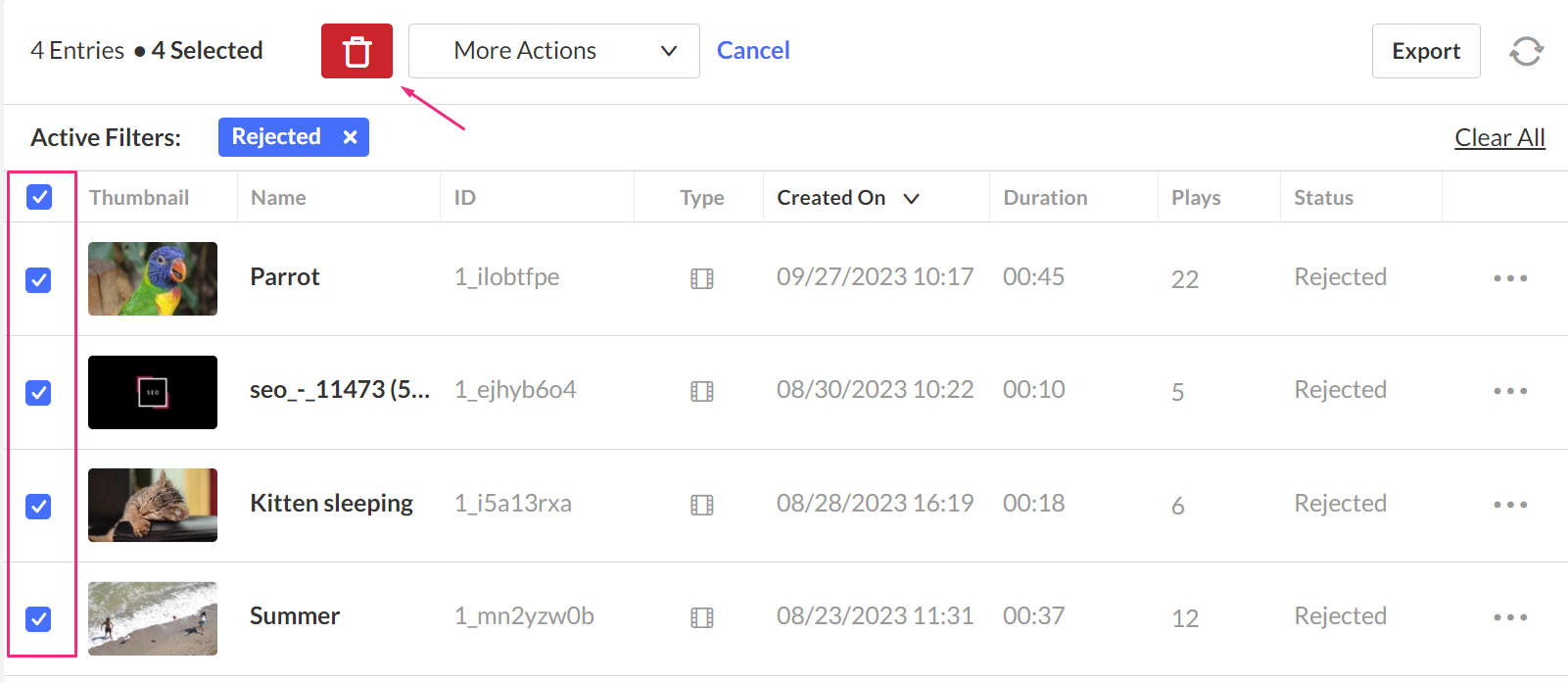
A confirmation message displays.
User experience
For the user, the entry displays a new status.
 Pending media in Content Hubs
 Pending media in legacy Video Portal