About
The Copy Channel module allows users to copy channel contents to a different Kaltura account. The sections herein will guide you through enabling and configuring the Copy Channel module.
This module is for both Content Hubs and legacy Video Portal users.
For technical support, contact Kaltura Customer Care. For all other inquiries, reach out to your Customer Success Manager.
Configure
1. Access your Configuration Management console.
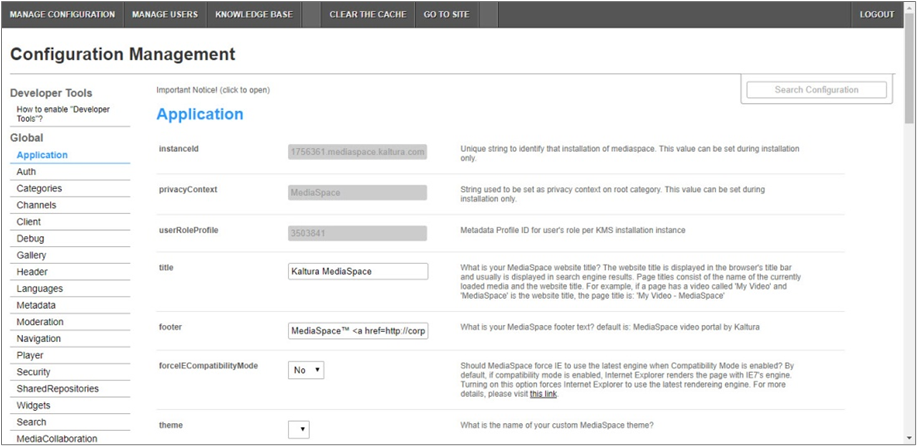
4. In the list of configurable items on the left of your screen, locate and click on Copychannel.
The Copychannel item will be crossed out because it is disabled by default.
The Copychannel window displays.

The Module Info box displays the module name, description (what enabling this module allows users to do), and version number.
5. In the enabled pull-down list, select Yes to enable the Copychannel module.
Other configurable items following the enabled pull-down list are as follows.
| Configuration Name | Options | Description |
| tabTitle | Free text | The title menu item or button on the channel page. |
| tabTooltip | Free text | The tooltip that will appear when hovering over the menu item or button. |
| flavorParamsId | Depend on available flavors | Flavor to copy. |
6. Click Save. You receive a notice that your configuration for Copychannel was saved and the cache was cleared.
Copy channel capability
Once enabled and configured, a new copy channel capability is added to the channel page that allows users to copy the channel. This copy channel capability is displayed for Content Hubs users on the Actions menu, and for legacy Video Portal users as stand-alone button.
Content Hubs users:

Once Actions > Copy Channel is selected, the user is redirected to the Copy Channel screen where they can copy channel contents to a different Kaltura account.

Legacy Video Portal users:

Once the Copy Channel button is clicked, the user is redirected to the Copy Channel screen where they can copy channel contents to a different Kaltura account.

This document is maintained by Kaltura’s Professional Services team. Please send comments or corrections to your Customer Success Manager. Ask them to forward it to the Professional Services team. We are committed to improving our documentation and your feedback is appreciated.
