About
This guide explains how end users can mark content as confidential which prevents publishing of the entry in both KMS and KAF.
This module is for both Theming and non-Theming users.
For technical support, contact Kaltura Customer Care. For all other inquiries, reach out to your Customer Success Manager.
Set media as confidential
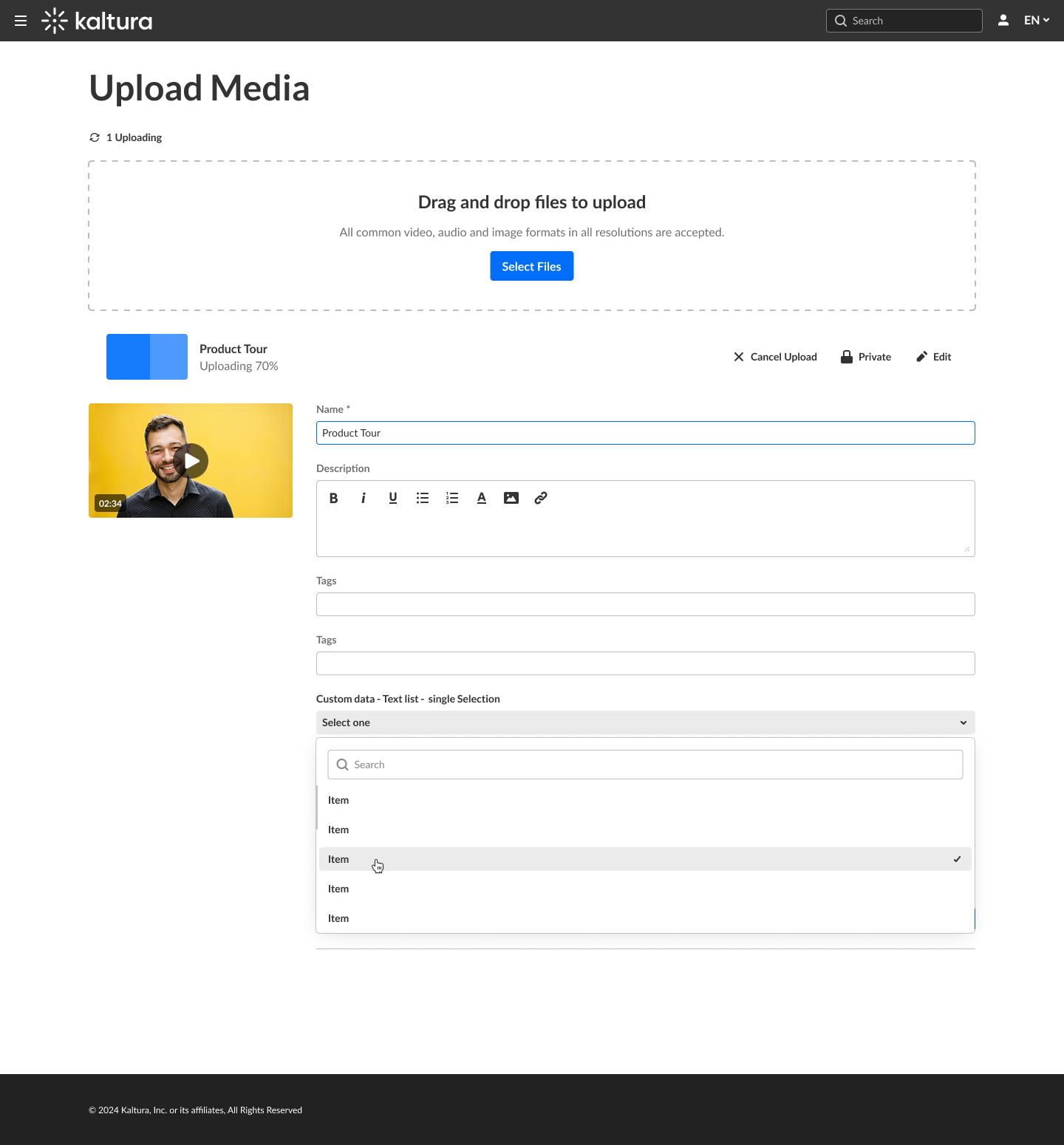
- As part of the upload/edit media process, choose a custom data schema. In our example below, the user is uploading media.
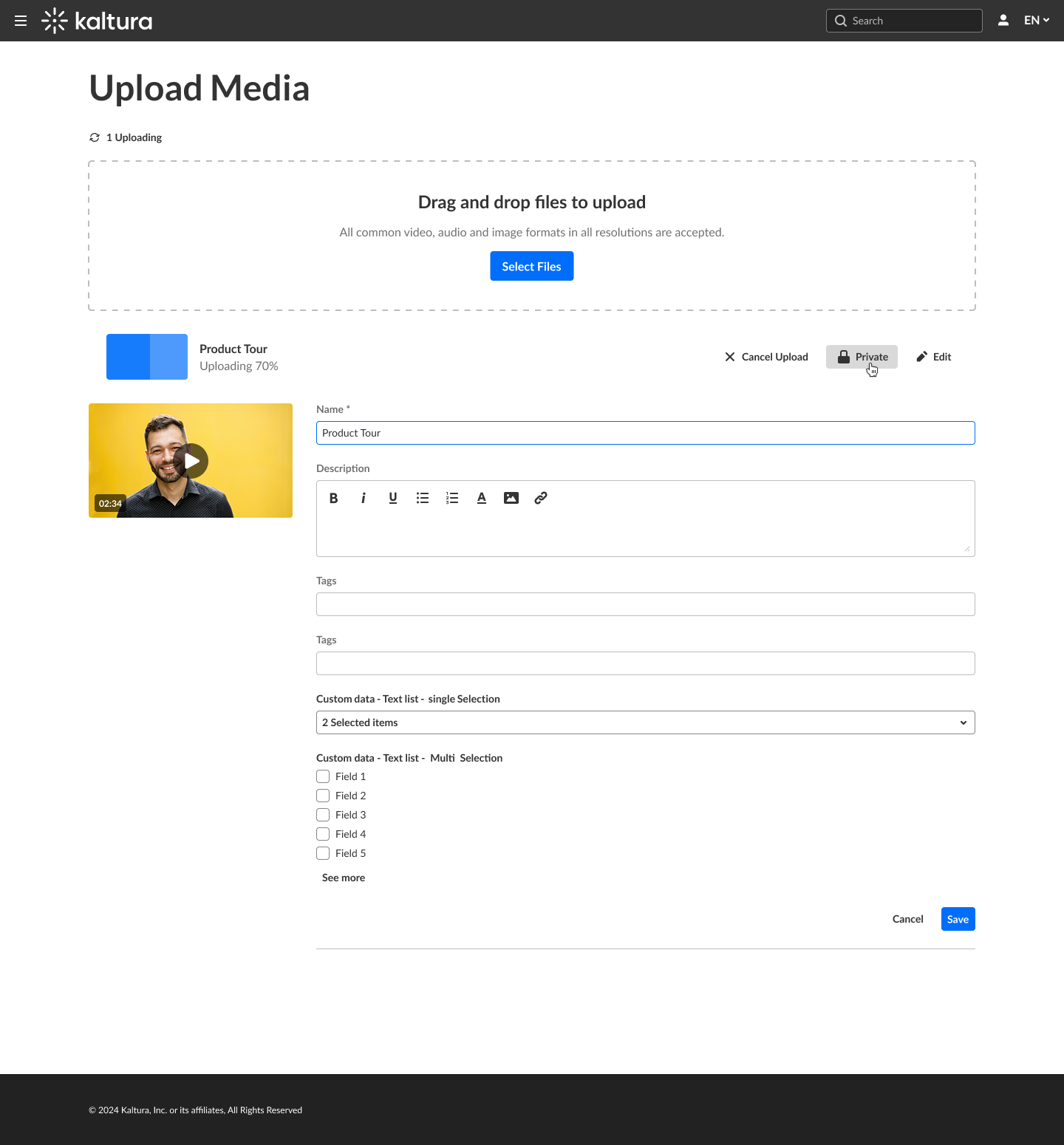
- Click on Private button.
 A warning message displays asking you to confirm your action.
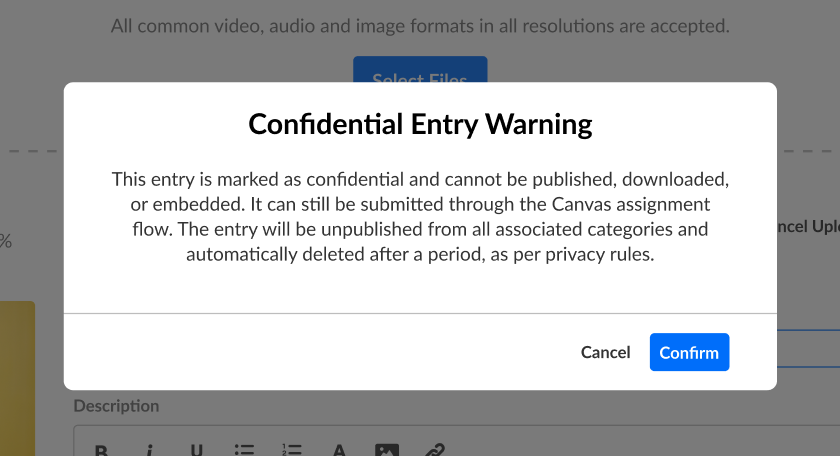
- Click Confirm.
 A warning message displays asking you to confirm your action.
How confidential media appears to the end user
When media is set as confidential, it appears to the end user as follows.
Non-Theming -
My media - Confidential 'lock' icon and label.

Media page - No 'Share' functionality.

Theming -
My media - No confidential 'lock' icon or label.

Media page - No 'Embed' functionality in Share screen.

