About
This article describes how to implement your brand on the virtual classroom site.
Brand the virtual classroom site
Navigate to the Branding page; from the site page, click the Branding tab.
The Branding page displays.

The Branding page allows you to edit the logo, banner, and theme for your virtual classroom.
Edit logo
The default logo is taken from the initial setup. If you wish to insert a different logo, click Edit logo and choose the desired file. We recommend that your logo has adequate contrast on dark backgrounds. Recommended size: max height 200px.
Edit banner
The default virtual classroom banner is taken from the template initial setup. If you wish to insert a different image, click Edit image and choose the desired file. The image may be cropped. We recommend avoiding texts and placing the subject at the center of the image. Recommended size: 1920x1080 px.
Activate theme
- Hover over the desired theme, then click Activate theme.
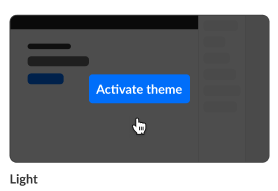 A confirmation screen displays.
 - Click Activate theme to confirm or click Cancel or cancel.
A message displays confirming your request. The activated theme is denoted below the theme box by "Active" and when you hover over the theme box, "Theme activated".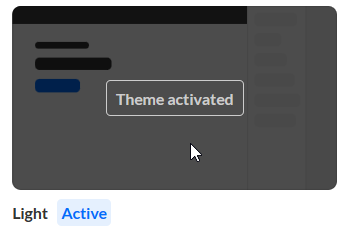
 A confirmation screen displays.
Custom themes must be enabled on your account. If custom themes are not enabled on your account, click Let's talk on the box entitled "Looking for a custom theme?" to contact a Kaltura representative about enabling them.
