About
This article explains how to automatically publish Zoom recordings to specific LMS courses using Zoom LTI Pro and Kaltura.
To enable this workflow, you need to configure Zoom tracking fields and map them to LMS (LTI) attributes. Once set, recordings created through Zoom LTI Pro are automatically published to the correct LMS course category.
Before you begin, make sure you set up your Zoom categories in the Rich Media Content Management System (Rich Media CMS). For setup instructions, see the Zoom Integration - Setup Guide.
When using Zoom LTI Pro, recordings are set to automatically publish based on the Tracking field to the designated category. Please note, this feature cannot be selectively disabled.
How automatic publishing works
When using Zoom LTI Pro, recordings are automatically published based on the Tracking fields configured in your Zoom account.
- The KalturaCategory field defines the target category
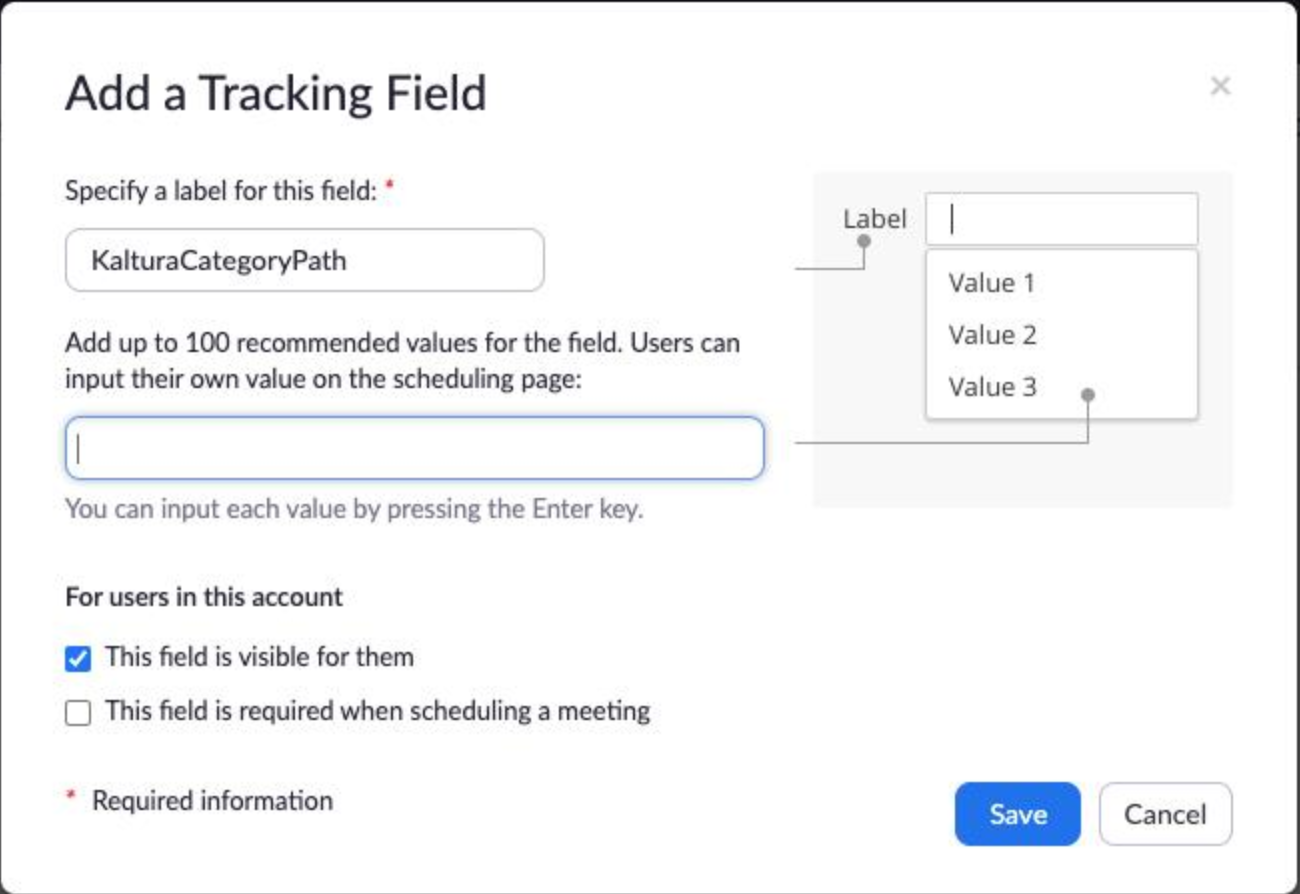
- The KalturaCategoryPath field defines the category path
This behavior is always enabled and can't be turned off selectively.
Set up automatic publishing
The following steps outline the required configuration for automatic publishing:

Step 1: Set up the Kaltura-Zoom connector
Follow the steps in the Zoom Integration - Setup Guide to connect Kaltura with Zoom. This connection is essential to enable automatic publishing between the platforms.
Step 2: Configure tracking fields in Zoom
Configuring tracking fields is required for automatic publishing. Without them, recordings won’t be published to LMS courses.
- Follow Zoom's guide on configuring Tracking Fields to activate this feature.
- In Zoom, go to Admin > Account Management > Scheduling Tracking Field.
- Add the following two fields and set them as optional*:
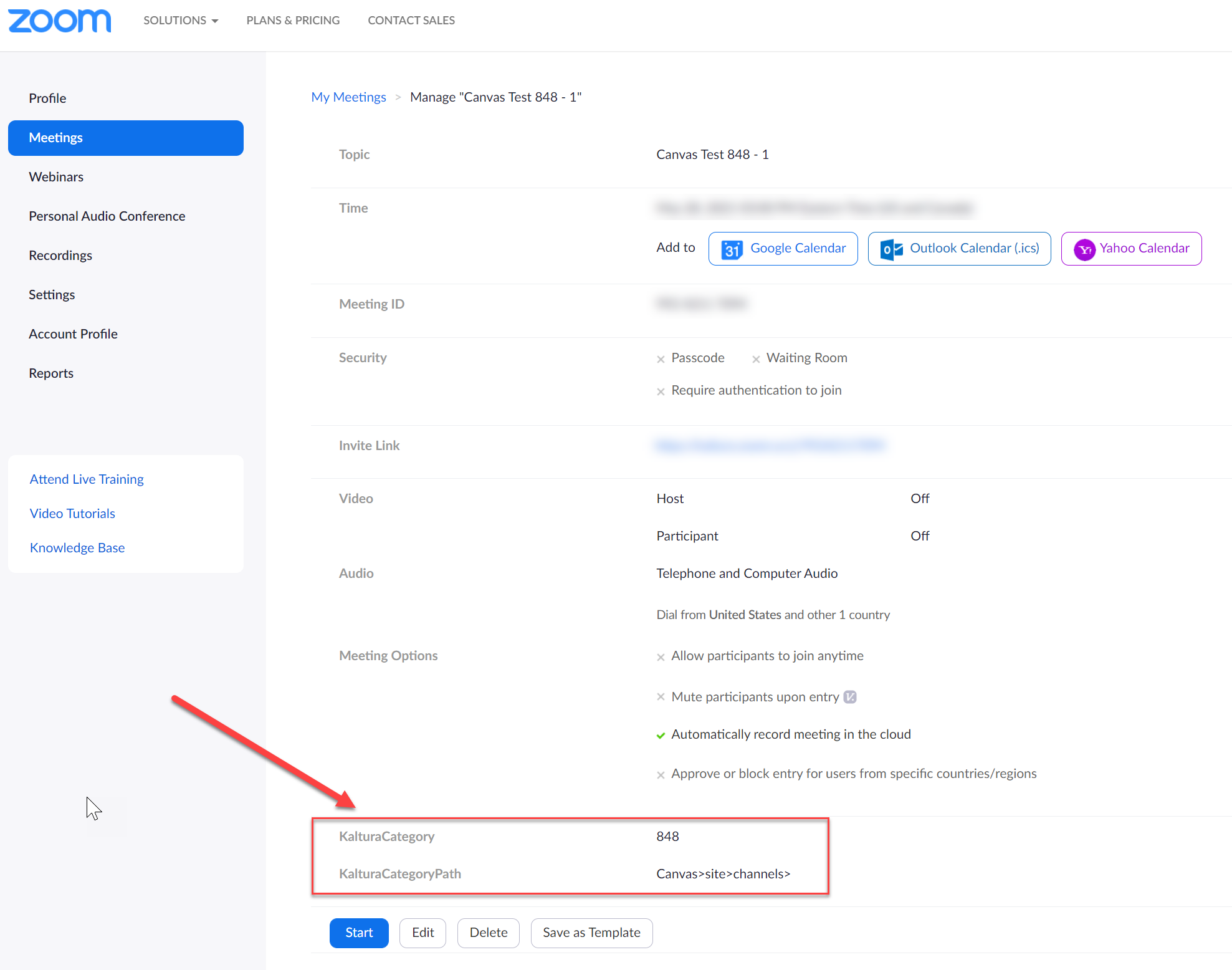
- KalturaCategory (to assign your Zoom recording category)
- KalturaCategoryPath (to set the path of the category in Kaltura)
*If these fields are NOT set as optional, all Zoom meetings (including those created outside the LMS) will require values, which can cause errors.

For further details, visit Managing scheduling tracking fields.
Step 3: Set LTI variables in your LMS
Configure LTI variables in your LMS Zoom LTI Pro tool.
For detailed setup instructions, see Configuring LTI Pro. Note that the instructions differ for LTI 1.1 and LTI 1.3 depending on your LMS.
- For LTI 1.1 - Some LMSs (like Canvas) will automatically add the prefix custom to variable names (for example, custom_canvas_course_id)
- For LTI 1.3 - Even if the ltiContextIdAttribute in KAF includes the prefix custom, you must EXCLUDE it in the attribute names when setting up Zoom’s Tracking Field (for example, use canvas_course_id instead of custom_canvas_course_id).

Following the correct naming conventions for each version is essential for auto-publishing to work properly. For details on how each LMS handles these variables, see Examples of different LMS settings section below.
Step 4: Map LTI variables to Zoom tracking fields
- Go to the Zoom Marketplace.
- Open LTI Pro > Manage.
- Select Configure.
- Scroll to Tracking Fields.
- Enable tracking fields and add mappings as needed.

- Make sure KalturaCategory and KalturaCategoryPath match the LTI attributes defined in your KAF configuration.
- Ensure naming is consistent across Zoom, LMS, and Kaltura. If naming is inconsistent, recordings won’t be published to the correct category.
See Using Scheduling Tracking Fields for more information.
Additional steps for multiple LMSs or courses with similar names
If you're working with multiple LMSs or have courses with identical category names, follow these steps for proper categorization:
- Add a custom LTI parameter named kaltura_category_path to define the category path.
- Set the KalturaCategoryPath tracking field to match this value.
Examples of different LMS settings
Use the following examples to configure the kaltura_category_path parameter.
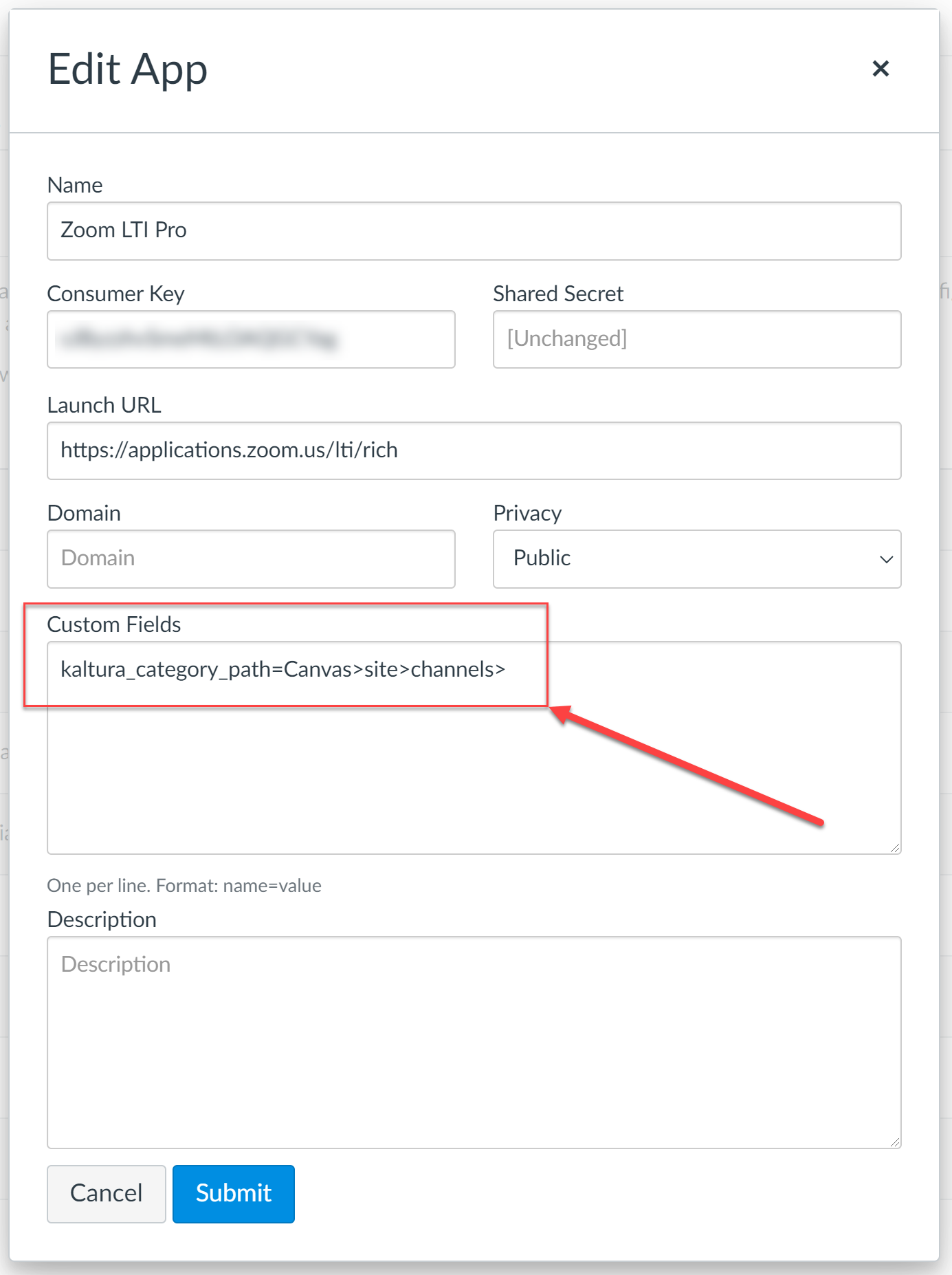
Canvas
- Canvas uses custom_canvas_course_id for course IDs.
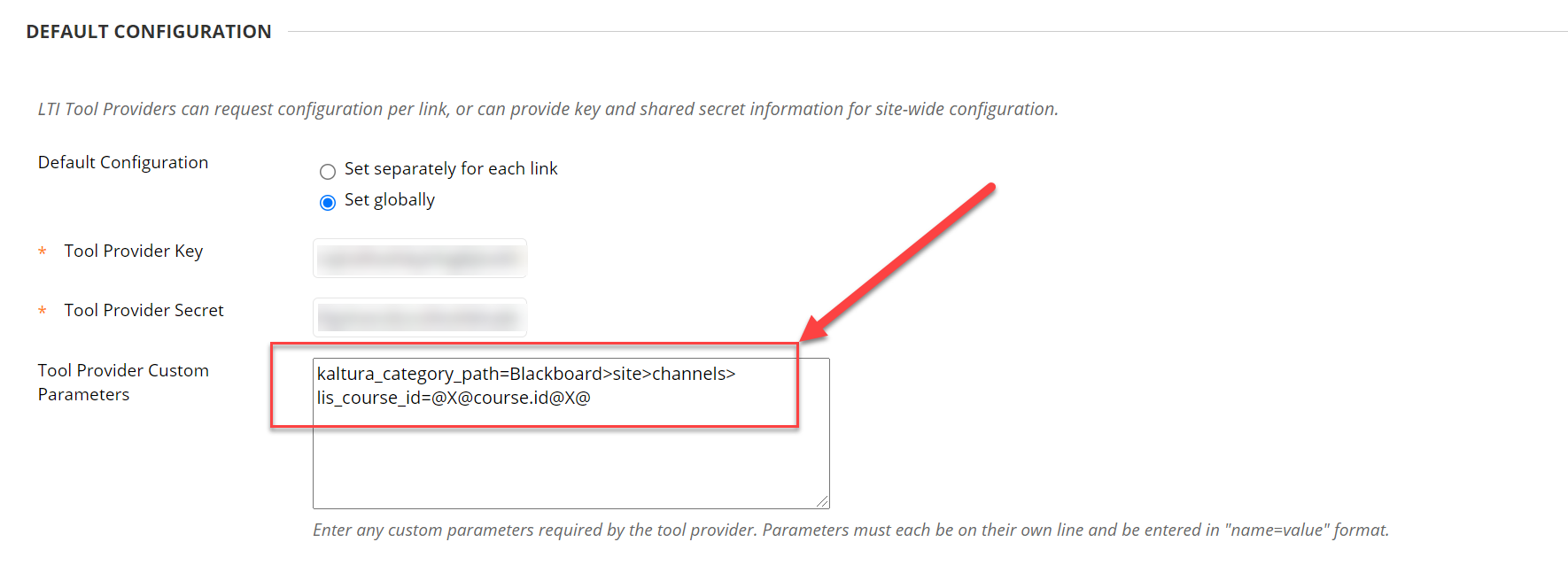
- Add the category path in the LTI config and name it kaltura_category_path.
- LTI 1.1 - appears as custom_kaltura_category_path.
- LTI 1.3 - use canvas_course_id and kaltura_category_path (don't include custom)
D2L
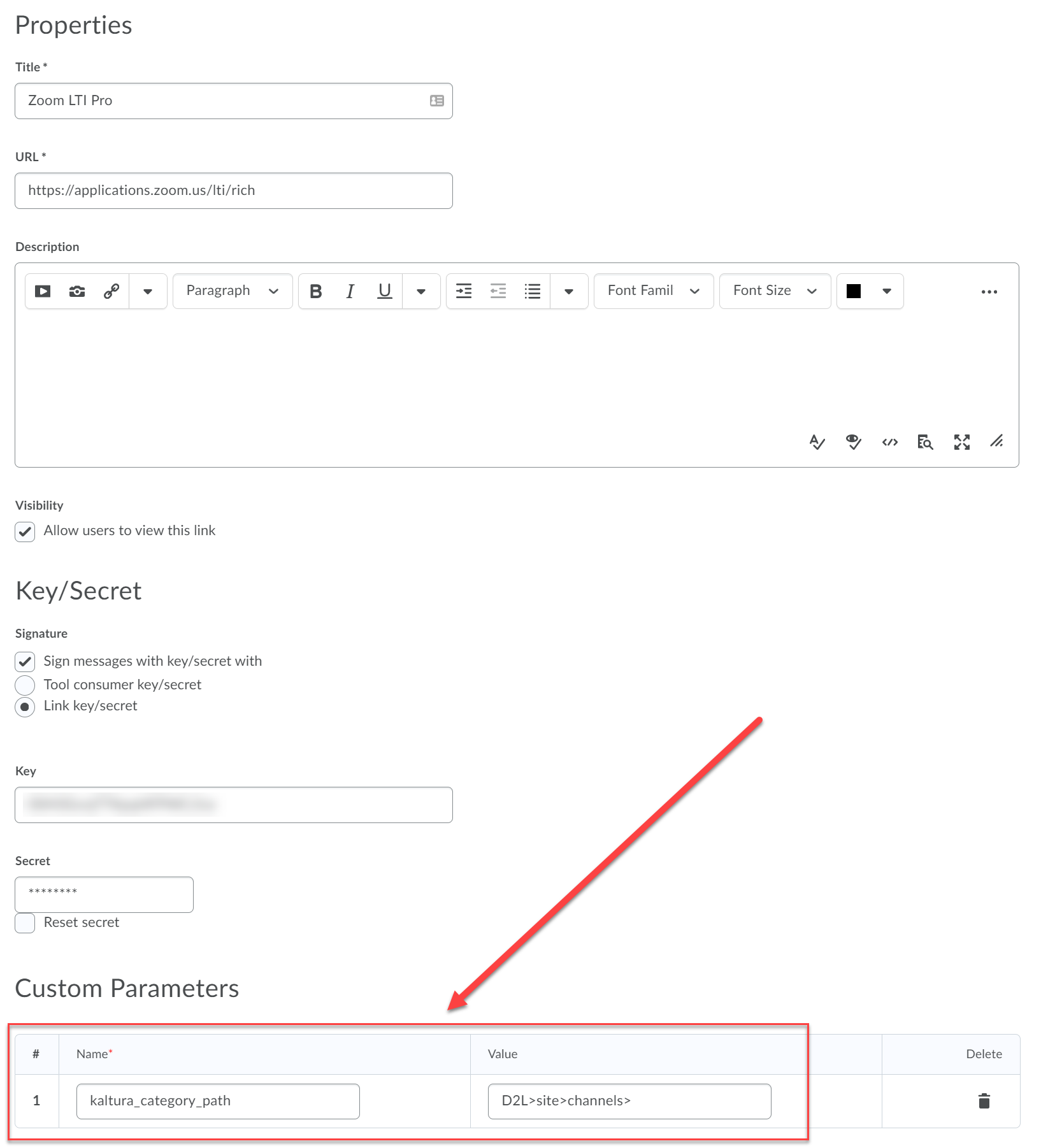
- D2L uses the LTI attribute context_id for course IDs.
- Add kaltura_category_path in the Custom Parameters field of the LTI config.
- Appears in Zoom as custom_kaltura_category_path.
Moodle
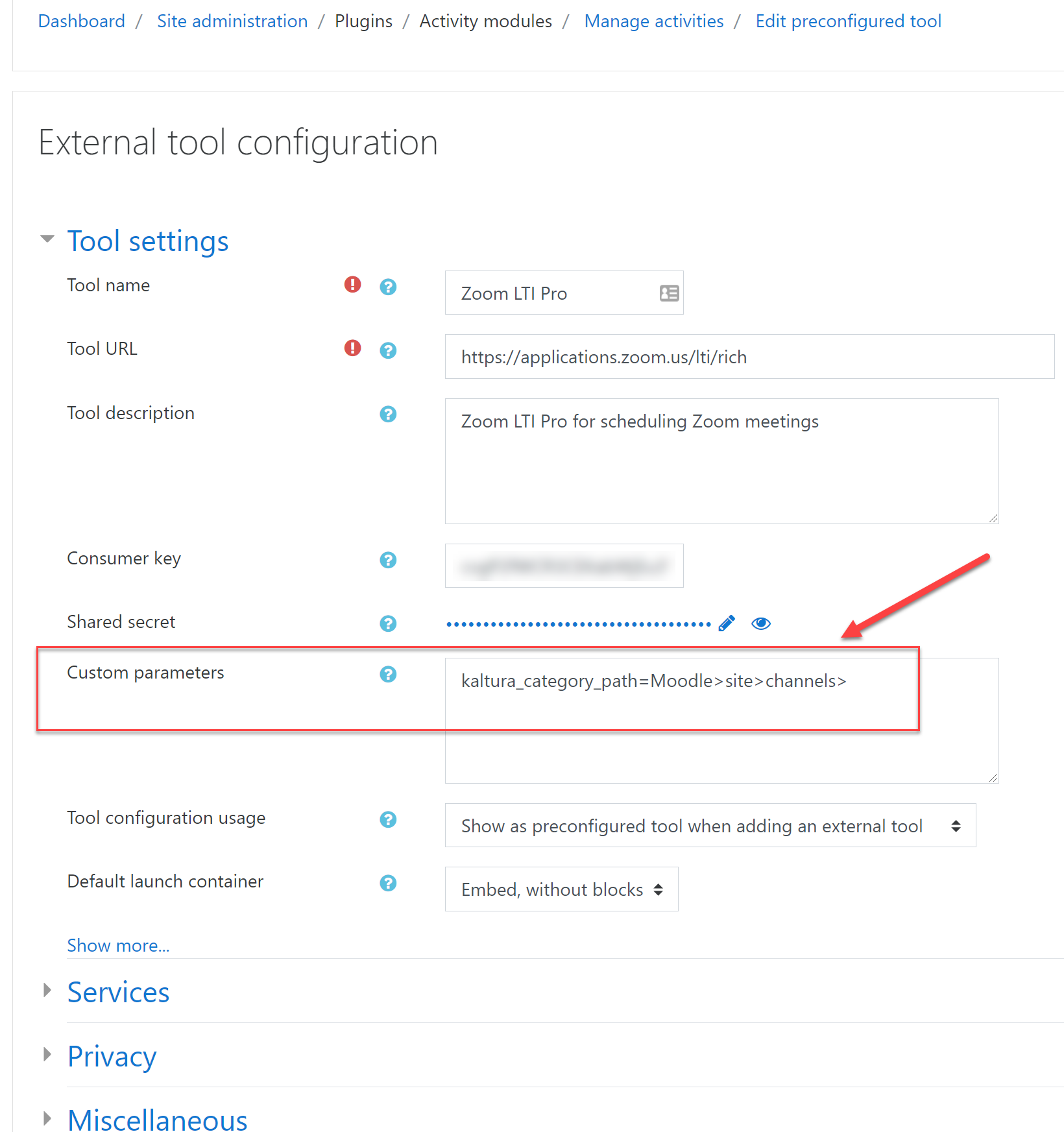
- Moodle also uses context_id for course IDs.
- Add kaltura_category_path in the Custom Parameters field.
- Appears in Zoom as custom_kaltura_category_path.
Blackboard
- Blackboard passes the context_id attribute for course IDs.
- Some deployments may need an additional custom parameter for course IDs.
- Verify your Zoom LTI Pro configuration as needed.
Testing the setup
Look for the tracking field values in the scheduled Zoom meeting.
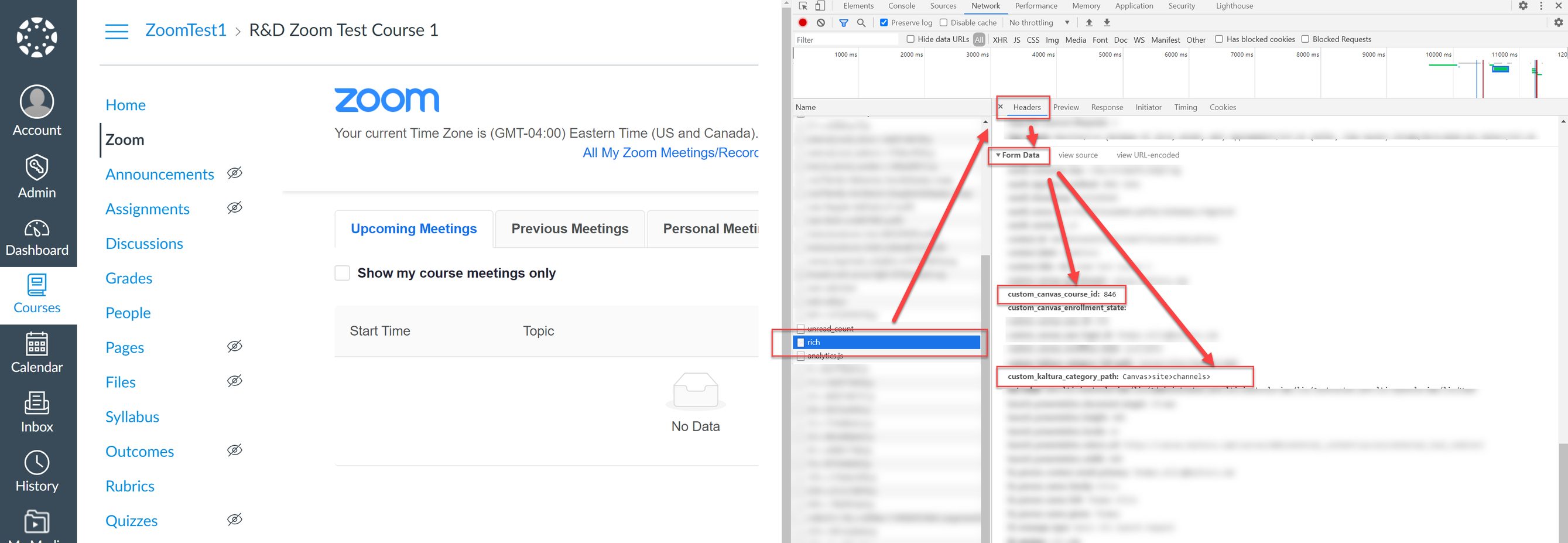
Verify LTI attributes using Network Console tools:
- Open your browser’s Developer Tools.
- Navigate to the Network tab.
- Launch Zoom LTI Pro and inspect the request.
- In Chrome, check the Payload section under network requests if the Form tab isn’t available.
- In Firefox or Edge, check Form Data
If values aren’t populating, check the Network Console in your browser upon launching Zoom LTI Pro to see if the expected LTI attributes are being passed.
- For LTI 1.3, look for 'advantage' instead of 'rich' in the Network Console.
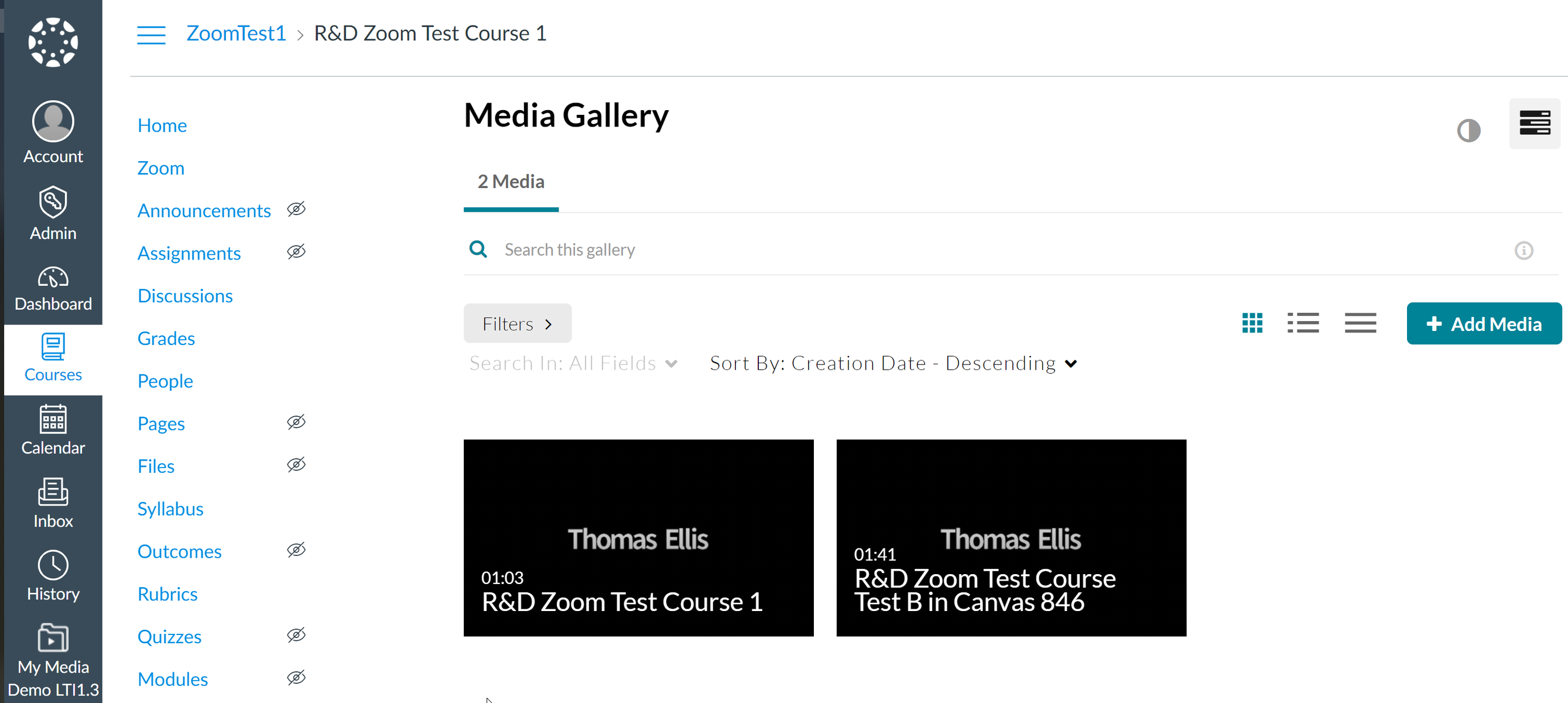
Verify that recordings automatically publish to the course’s Media Gallery in your LMS.
If tracking fields are visible, users can enter values when scheduling meetings outside the LMS. If they use the correct category and path, this triggers automatic publishing to the corresponding destination (for example, the legacy Video Portal).
