About
Single-video Genie lets you ask questions about the video you’re watching and get answers based only on that video. Genie highlights key moments, provides short explanations, and may reference supported attachments when available.
Live avatar conversations in single-video Genie are planned for a future release!
Single-video Genie is available for videos with captions, including:
- VOD
- Audio
- Playlist videos
- Recordings of live sessions
If Genie doesn’t appear, the video may not have captions, the feature may be turned off for your account, or you may not have the required permissions to access Genie.
Ask a question
1. Open a video.
The video page loads with the Genie panel open.
The panel may appear on the right, left, top, or bottom of the video, depending on how your admin set it up. In the example shown here, it appears on the right.

If the panel is closed, click the Genie icon (stars) in the top-right corner of the player to open it.
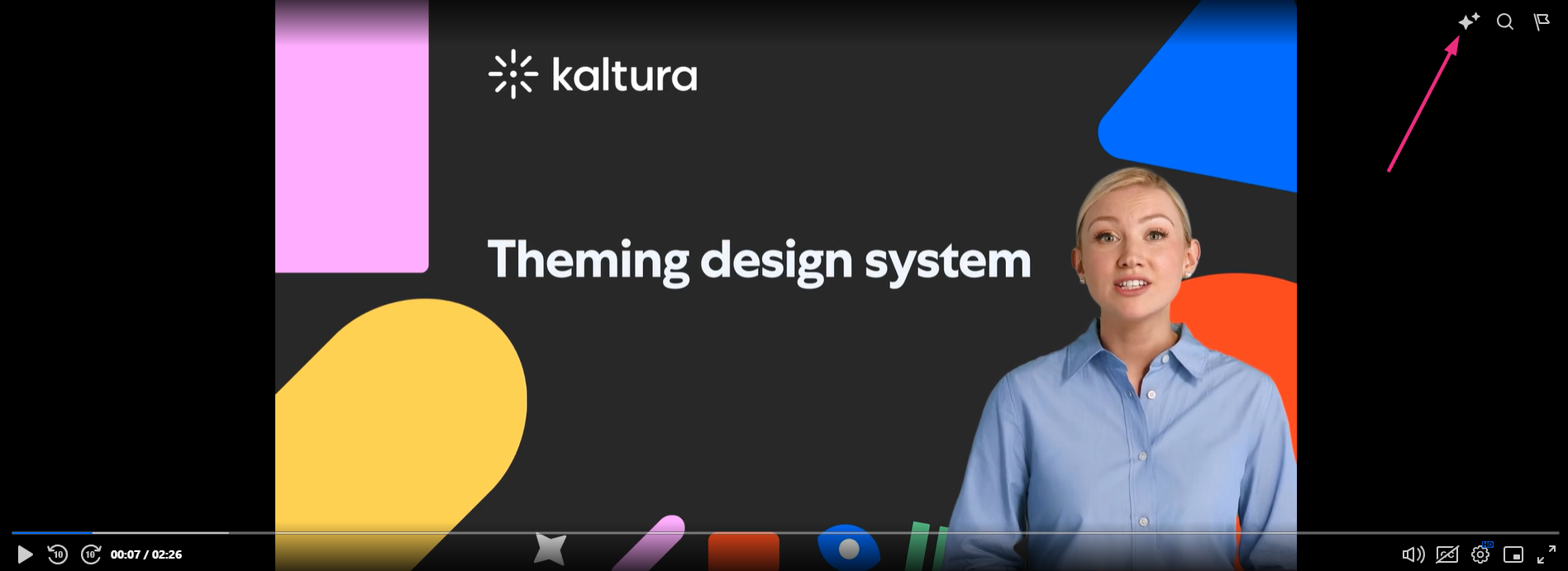
2. You can either type your own question into the Ask anything search field or choose one of the preset questions (see below for details).
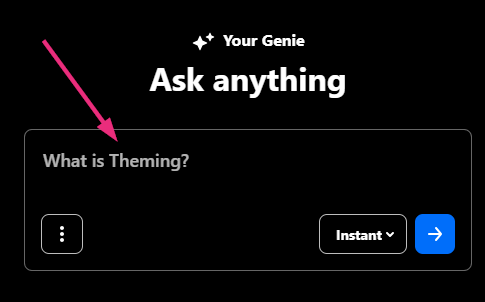
Use preset questions
Single-video Genie includes preset questions to help you get started quickly. You can use these to ask Genie to:
- Summarize the video
- Explain the main topic covered in the video
Selecting a preset question automatically runs the request.

Choose an answer format
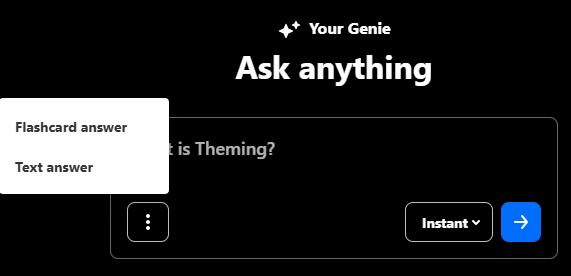
To the left of the input field, you can select Flashcard or Text.
- Flashcards give you key takeaways, often with video clips
- Text answers give you full written explanation with summaries, steps, or lists
If you don’t choose a format, Genie selects one based on your question.
Choose the answer mode
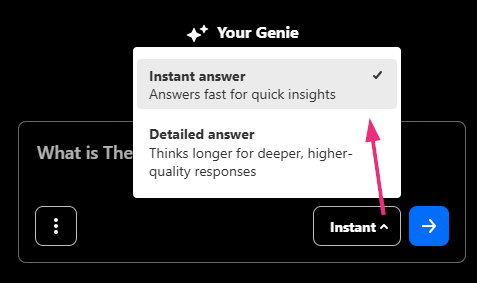
After typing in your question, you can choose the answer mode: Instant answer for a quick response, or Detailed answer for a deeper, higher-quality response.
Genie begins analyzing your question.
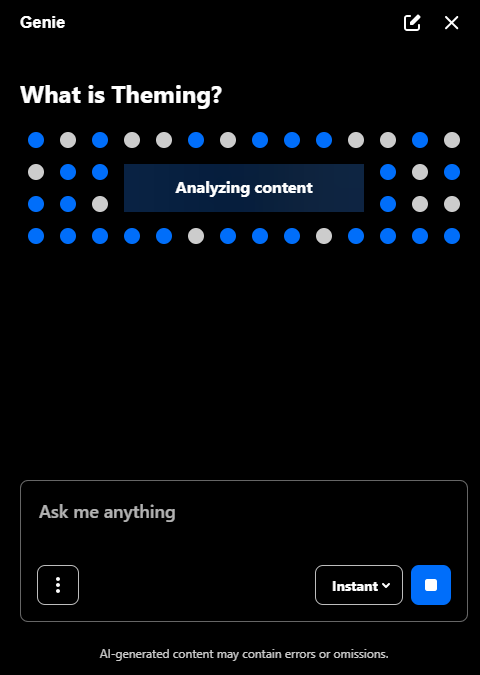
Cancel a request
To cancel while Genie is generating a response, click the blue stop button (square icon). You’ll stay in the same thread and can immediately ask a new question.
View your answer
After a few seconds, your answer appears as flashcards or text, depending on your question / selected format.
Timestamps appear as small numbered markers next to the text. Hovering over a marker shows a thumbnail preview of that moment in the video. Clicking it jumps directly to that point in the video.
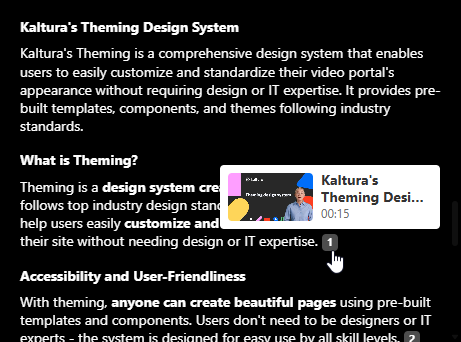
If Genie can’t find an exact match, it will show: I couldn't find an exact match for your request and suggest related questions.
Want to learn more? See Understand Genie’s answers.
Ask a follow-up question
Type your next question into the 'Ask me anything' field or select a suggested follow-up. Genie uses the previous response as context and adds the new answer below it.
Start a new thread
In the top right corner of the Genie panel, the new thread icon (pencil in square) lets you start a fresh conversation. Click it to clear the current discussion and open a new 'Ask me anything' field.
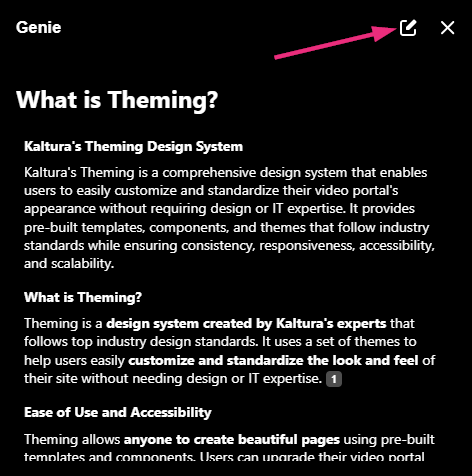
Multilingual support - Genie responds in the language you use to ask your question. If matching-language sources aren’t available, Genie returns the most accurate results it can.
Share an answer
You can share a specific Genie answer with others.
- Scroll to the bottom of the answer.
- Click Share.
- Copy the link that appears and share it as needed.


Follow-up questions from a shared link
When someone asks a follow-up from a shared answer, the page updates automatically and the conversation continues seamlessly from that point.
Provide feedback
Providing feedback on Genie’s responses plays a crucial role in improving its accuracy and future recommendations. You can rate any answer using the thumbs up or thumbs down icons.
- Click an icon.
- Add an optional comment if you'd like
- Click Submit to send your feedback

The feedback window opens.
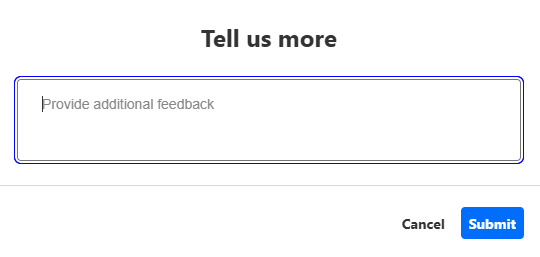
Once submitted, you can’t edit or resubmit feedback for that answer.
