About
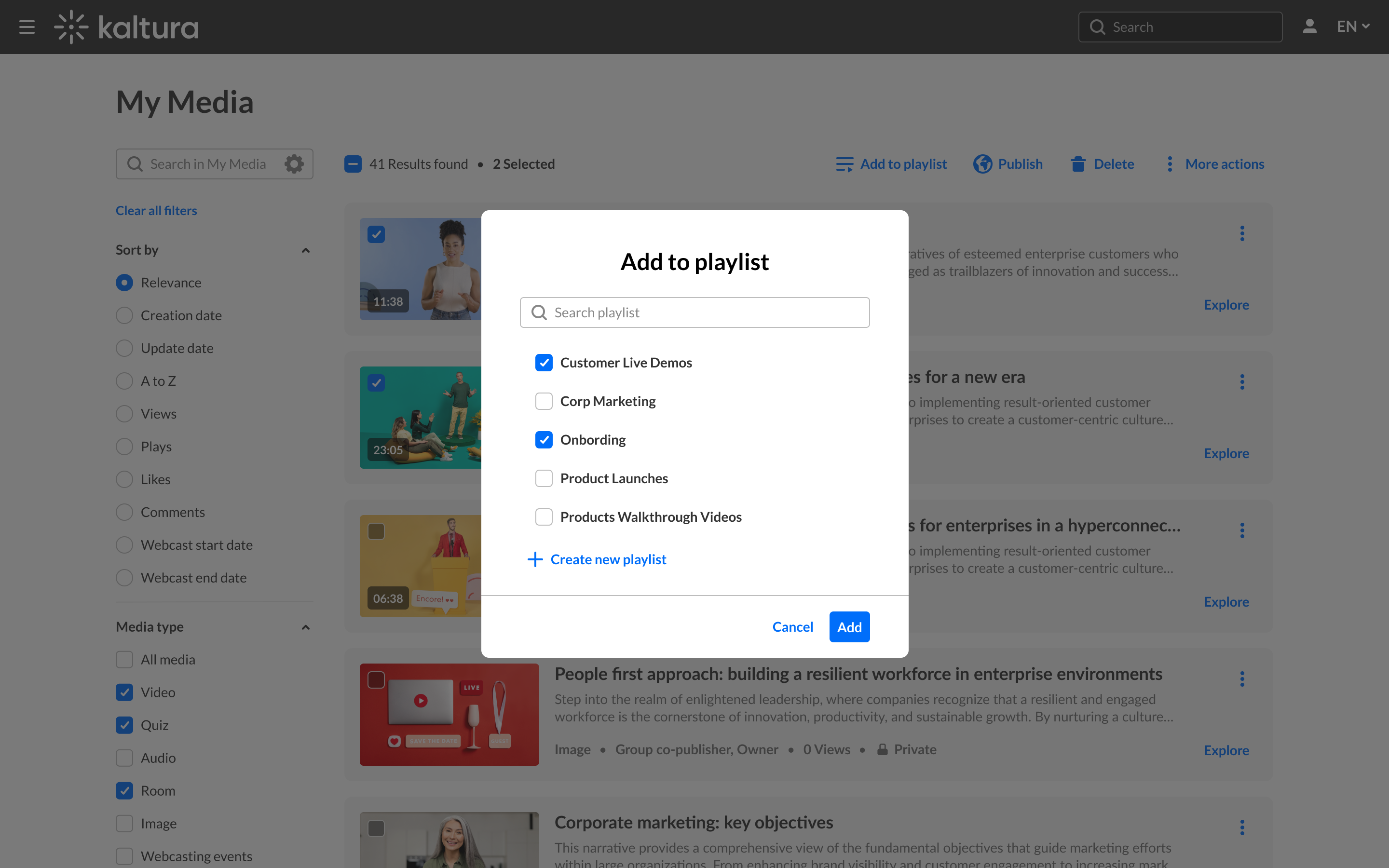
Add media to one or more playlists directly from the My Media page or from an entry's media page. You can select existing playlists or create a new one as you add your media.
New entries can be added to the top or bottom of a playlist, depending on how your administrator has configured the Add to Playlist module. By default, new entries are added to the bottom.
Add media from My Media
- Select My Media from the user menu.
- Select the checkbox for each media entry you want to add to a playlist.
- Click Add to playlist at the top of the page.
- Select one or more playlists. You can also create a new playlist. See Create a new playlist below for instructions.
- After you have made your selection, click Add.
A success message displays.

The My Media page displays.


The Add to playlist window opens.
Add media from the media page
- Go to the media page for the entry you want to add.
- Click the three dots below the player.
- From the three-dot menu, select Add to playlist.
- Select one or more playlists. You can also create a new playlist. See Create a new playlist below for instructions.
- After you have made your selection, click Add. A success message displays.


The Add to playlist window opens.

Create a new playlist
- In the Add to playlist window, click + Create new playlist.
- Enter a name for your new playlist in the empty field that appears.
- Click Create.
- Click Add.


The new playlist is created and automatically selected.

A success message displays.
