About
Attach files to your media effortlessly, allowing viewers to download them before, during, or after watching the content.
This feature requires the Attachments module to be enabled.
Upload attachments
- Access the edit media page.
- Click the Attachments tab.
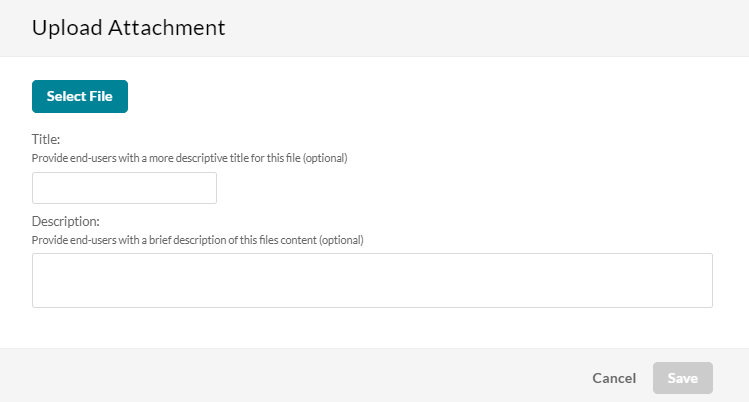
- Click Upload File.
- Click Select File.
- Select the file you want to upload as an attachment and click Open.
Once the file has uploaded, a success message displays: Upload Completed. - Type in a title and a description for the attachment (optional).
-
Click Save.
A success message displays: The information was saved successfully.
The file is saved as an attachment to your media file. Information about the attachment appears in a table.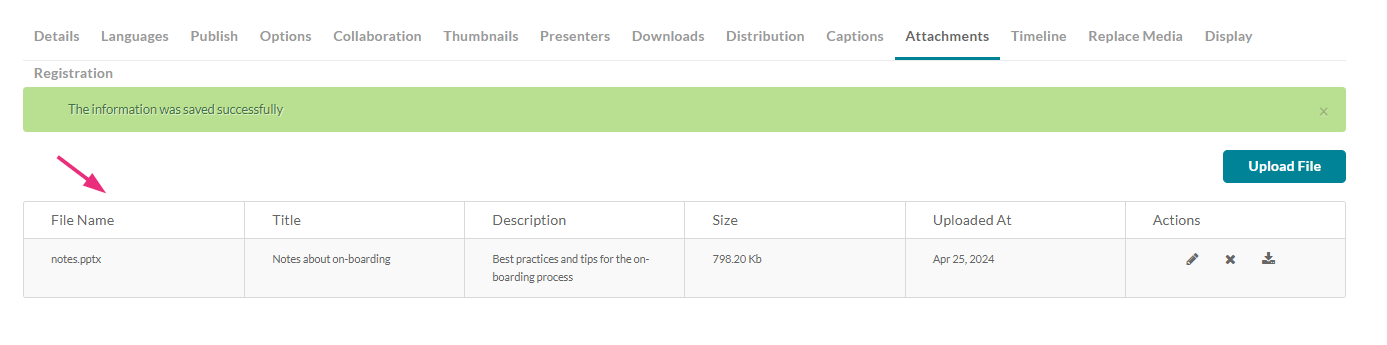
To upload another attachment, repeat steps 3-7 above.
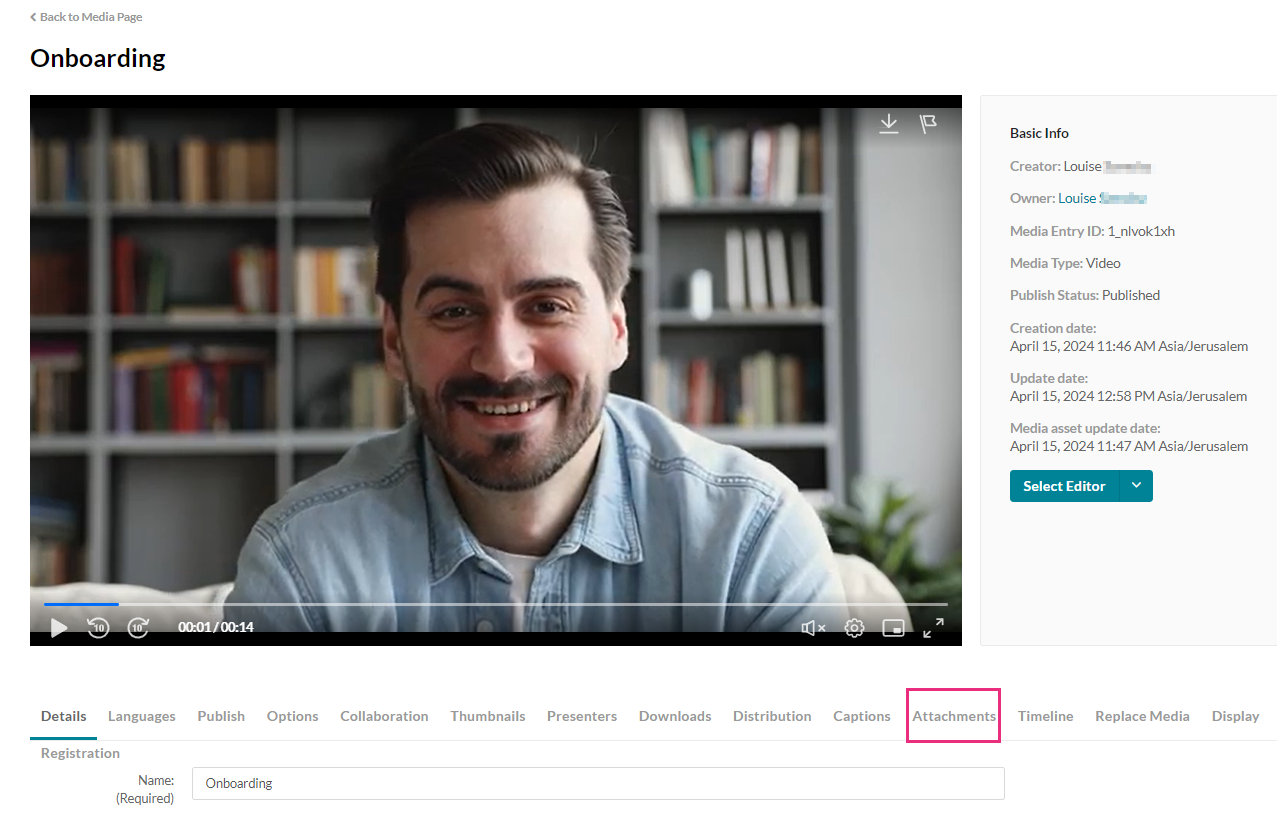

The Upload Attachment window displays.
Actions
You can use the options in the Actions column to perform various actions.

Edit the title or description of the attachment
- Click the pencil icon.
The Change File window displays. - Modify the title and description as desired.
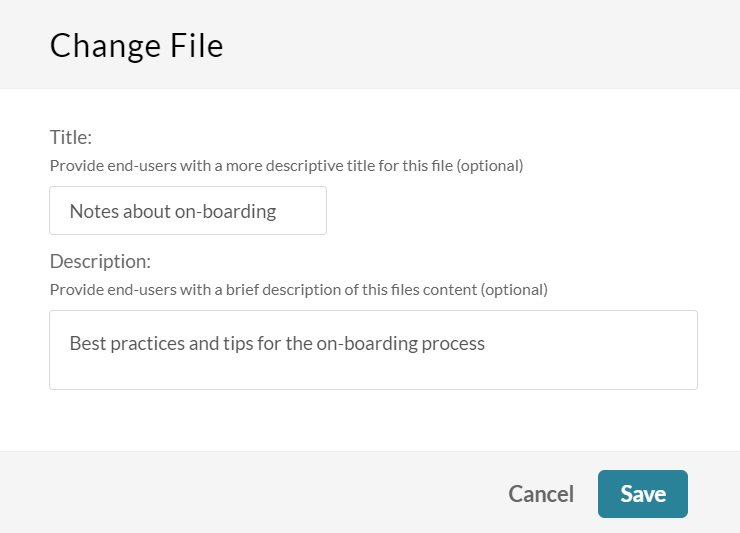
- Click Save.
Delete the attachment
- Click the X.
A confirmation window opens. - Click Delete.
Download the attachment
Click the download icon.
The file downloads to your computer.
The supported file types for media attachments can be documents, spreadsheets, presentations, audio/video files, and images, including:
Media files - *.mts;*.MTS;*.qt;*.QT;*.mov;*.MOV;*.mpeg;*.MPEG; *.avi;*.AVI;*.mp4; *.MP4; *.vob;*.VOB;*.flv; *.FLV; *.f4v; *.F4V; *.asf;*.ASF; *.wmv;*.WMV;*.m4v;*.M4V;*.3gp;*.3GP; *.mkv;*.MKV;*.arf;*.ARF; *.webm;*.WEBM; *.mxf;*.MXF
Document files - 'doc', 'docx', 'docm', 'dotx', 'dotm', 'xls', 'xlsx', 'xlsm', 'xltx', 'xltm', 'xlsb', 'xlam', 'ppt', 'pptx', 'pptm', 'potx', 'potm', 'ppam', 'ppsm', 'odb', 'odc', 'odf', 'odg', 'odi', 'odm', 'odp', 'ods', 'odt', 'otc', 'otf', 'otg', 'oth', 'oti', 'otp', 'ots', 'ott', 'oxt','swf','pdf'
Image files - "jpg", "jpeg", "bmp", "png", "gif", "tif", "tiff"
