About
When performing a bulk upload in the Kaltura Management Console (KMC), you can use a CSV or XML file to define media, categories, users, or entitlements to import.
CSV files are simple and quick to prepare, while XML files provide more flexibility and support complex ingestion workflows.
- For instructions on preparing a CSV file, see Prepare a CSV file for media bulk upload.
- To learn how to submit your file in KMC, see Upload media in bulk.
Download sample templates
You can download ready-to-use templates directly from the KMC.
- In your KMC, click +Create in the navigation bar.
- Click Download CSV/XML Samples.
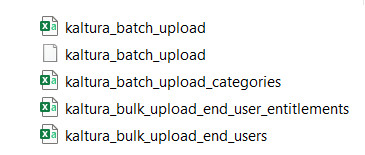
- Open the downloaded folder (kaltura_batch_upload_sample).

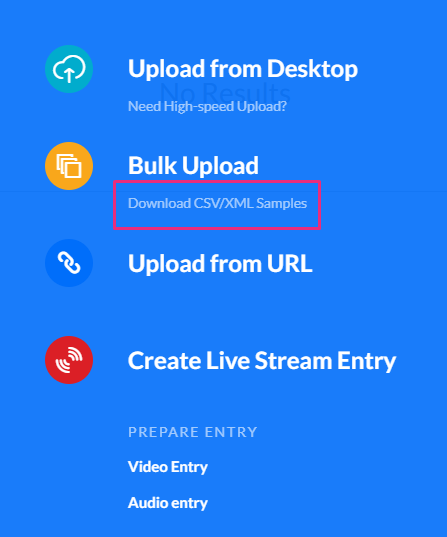
Each sample file includes the correct column structure and example data for entries, categories, users, and entitlements.
CSV format
A CSV file is a spreadsheet-style list of items to upload, such as entries, categories, users, or entitlements. Each row represents one item, and each column defines a metadata field.
Key points
- Each row represents one entry.
- Metadata fields can be populated directly from the CSV
- Files can be hosted on your FTP server or any publicly accessible source
- Lines starting with a # are comments and are ignored during processing.
- The first line must start with an asterisk (*) followed by a comma-separated list of field names.
- If a field name doesn’t exist in your account (for example, a metadata profile field), the upload will skip it and log an error in the Bulk Upload log.
- We recommend a maximum of 500 lines/uploaded media files included within one CSV file.
For detailed instructions on preparing the CSV file and understanding the template structure, see Prepare a CSV file for media bulk upload.
XML bulk upload (recommended)
XML is Kaltura’s recommended bulk upload format.
Unlike CSV, XML supports a hierarchical structure and full CRUD (Create, Read, Update, Delete), allowing you to define nested metadata, transcoding settings, distribution rules, and more.
Advantages of XML upload
- Import multiple files in one batch
- Ingest large files (>2GB) not supported via KMC desktop upload
- Populate structured metadata without using the KMC interface
- Automate ingestion processes
- Customize metadata and structure based on your account workflow
The full set of supported features is defined in the XML schema (XSD template).
Supported use cases
XML uploads are particularly useful when you need to:
- Include multiple transcoding flavors (pre-transcoded assets)
- Attach multiple thumbnails to a single entry
- Add custom metadata fields defined in your account
- Configure publishing or distribution settings as part of ingestion
Assign a transcoding profile
You can specify a transcoding profile in either file type:
- CSV - add the conversionProfileId column and enter the profile ID
- XML - include the <conversionProfileId> element within each <entry>
Profile IDs are listed under Settings → Transcoding Profiles in KMC.
For more information, see our article Transcoding.
API-based bulk uploads
If you are using the Kaltura API to automate ingestion instead of the KMC interface, submit bulk uploads in batches of 500 entries. Pause 10–15 minutes between batches before submitting the next batch.
This helps avoid queue overload during large ingestion jobs.
Validation and troubleshooting
If a bulk upload fails or entries are skipped:
- Verify column headers (CSV) or tags (XML) exactly match expected field names.
- Ensure file paths and URLs are valid and accessible.
- Check the Bulk Upload log in KMC for errors or skipped entries.
- Save files using UTF-8 encoding, which preserves special and non-English characters so titles and metadata appear correctly in Kaltura.
To save files in UTF-8:
- Excel: choose CSV UTF-8 (Comma-delimited) when exporting.
- Google Sheets: select Download → Comma Separated Values (.csv).
- XML: add <?xml version="1.0" encoding="UTF-8"?> at the top of the file.
