About
Speaker notes included in PowerPoint slides can be displayed in a teleprompter while presenting from the storyboard. This allows presenters to read or reference their notes during a session without showing them to the audience.
Only moderators and users with access to the storyboard can view speaker notes.
To learn how to add and present slides from the storyboard, see Use the storyboard during your session in the Kaltura Room.
Present slides with speaker notes
If the active slide contains notes, a notes icon appears on its thumbnail in the storyboard when you hover over it.

Click the notes icon to open the teleprompter.
Work with the teleprompter
The teleprompter allows you to read or reference your notes while presenting.

You can:
- Move the teleprompter anywhere on the screen
- Adjust the text size using the font size slider
- Scroll through longer notes
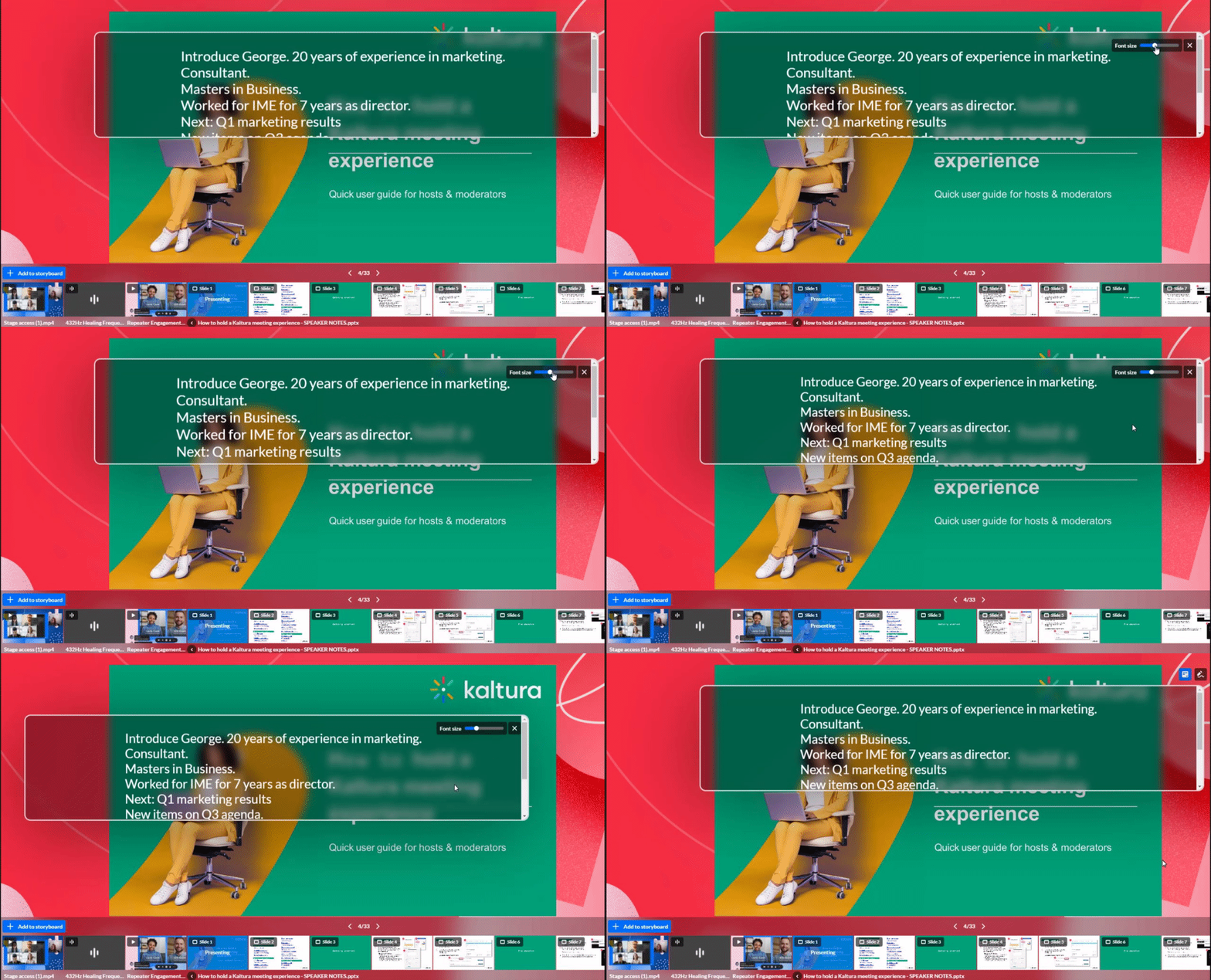
You can adjust its size by grabbing the side or corner of the teleprompter. Resizing starts only when the pointer is a double-ended arrow (minimum size is 250 x 110).

To hide or show your notes, click the notes icon at the top right of the screen.
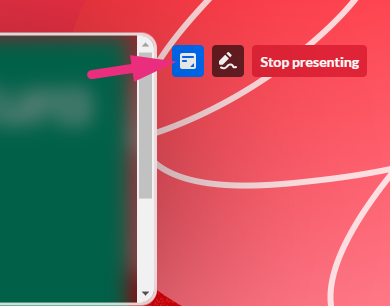
The teleprompter is visible to presenters who have access to the storyboard.
Each presenter controls their own teleprompter view. If one presenter hides the teleprompter, it can remain visible for other presenters.
