About
Use polls in the Webcasting application to engage your audience during a live event. Presenters can create and run polls directly in the application, without needing a producer to manage them.
This article explains how to create, broadcast, share, and export poll results.
Webcasting polls aren’t supported in V7 player when using this Webcasting application. To use polling functionality, use the newer Webcasting applications that support polls through the Chat & collaboration widget. For more information, see Introduction to Live Studio events in legacy Video Portal.
Before you start
- You can create polls before or during a presentation.
- You can’t edit a poll after it has been broadcast.
- A poll must include:
- A question (up to 110 characters, including spaces)
- At least two answers (maximum five)
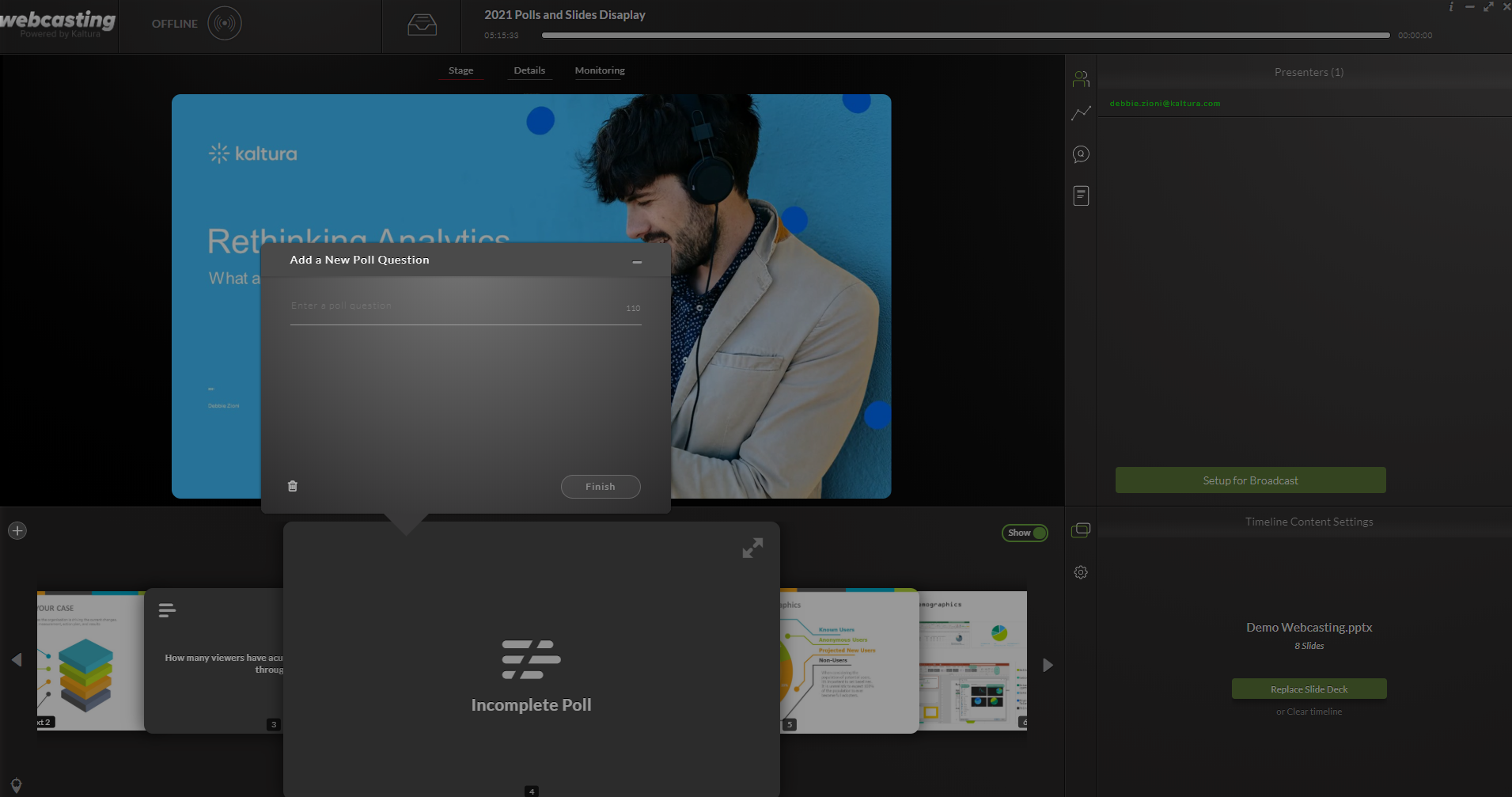
If you don’t provide enough answers, the poll is marked as incomplete and can’t be broadcast. You can return to edit it later.
Terminology:
- Answer – An answer option in the poll.
- Response – A participant’s selection for a poll question.
Create a poll
- Open the Webcasting application.
- In the timeline tab at the bottom of the application, click the + button and select Poll. The new poll is added after the currently selected slide.
- In the Add a New Poll Question screen, enter a poll question (up to 110 characters with spaces).
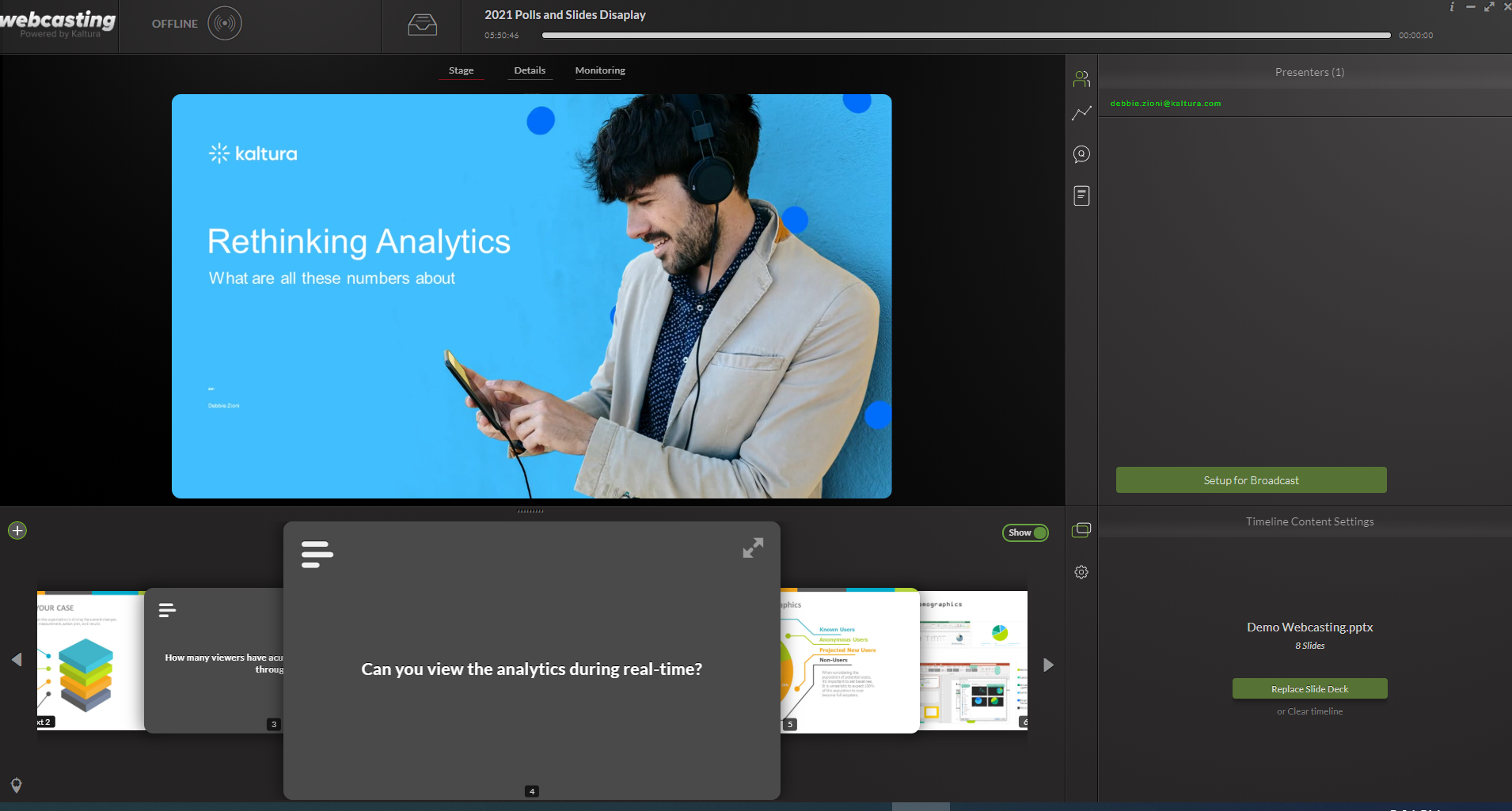
- Click in the answers field below the question and add between two to five answers. As you add answers, new optional lines appear automatically. Press Tab or click the next line to add another answer.
- Click Finish to save the poll. Your poll is now ready for broadcasting.
Broadcast a poll
- In the timeline, double-click the poll to move it to the center of the Webcasting application.
- Click Start Poll.
- When you’re ready to close the poll, hover over the bottom of the poll to display the action buttons.
- Click Stop Poll.
- Confirm by clicking the checkmark next to Are you sure?
Alternatively, use the arrow buttons to switch from the slide to the poll.
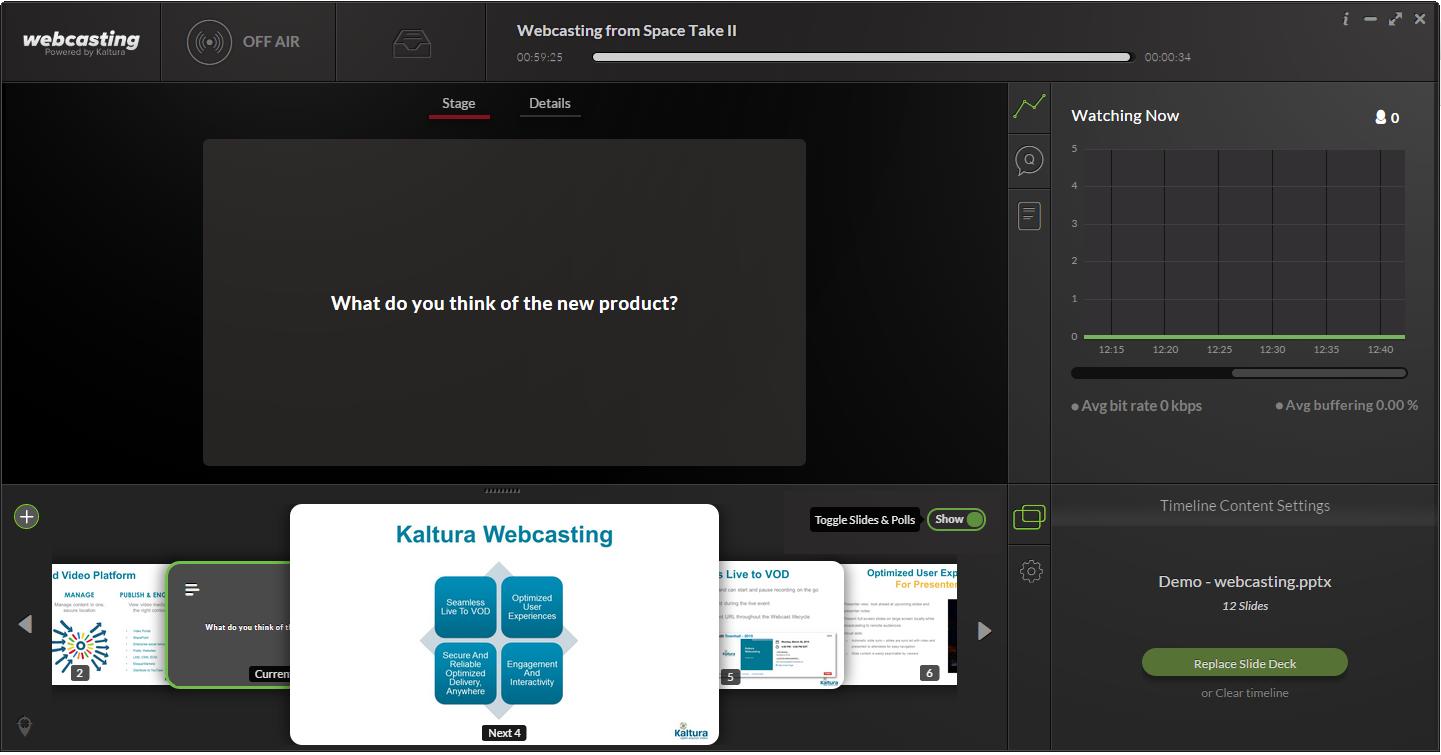 Poll selected in the Timeline and displayed on the Stage
The poll is displayed on the Stage. Until you click Start Poll, attendees see only the question over the live video.
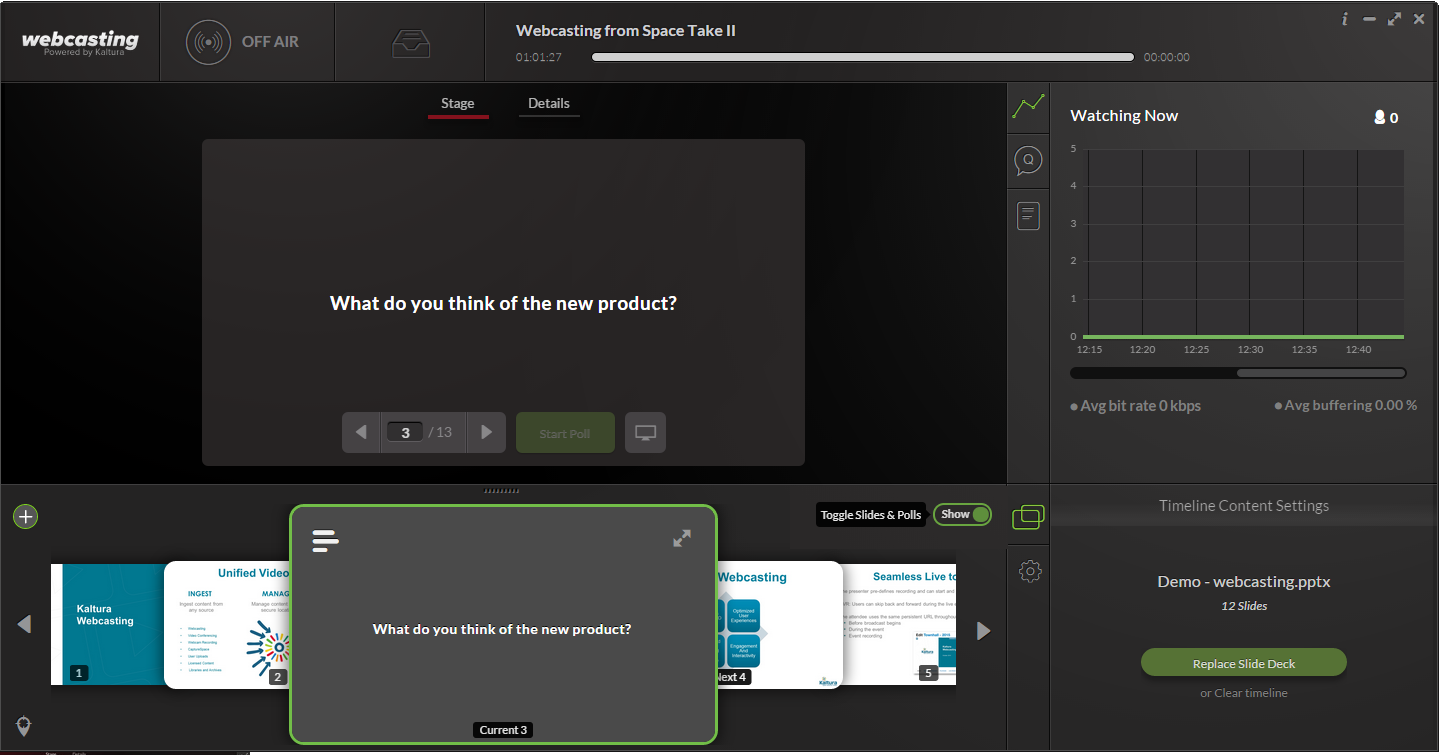 Presenter view with the poll ready to start
The poll opens for responses. As attendees respond, you see real-time results on your screen only. Attendees don’t see results until you share them.
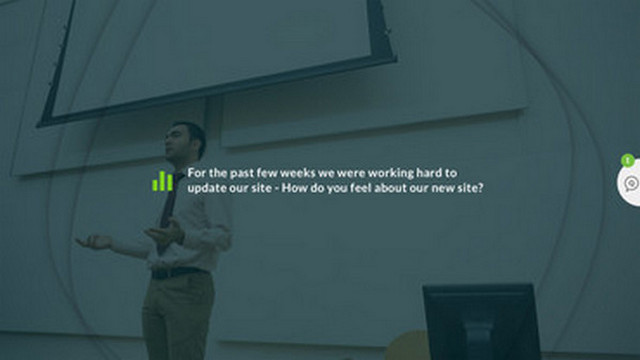 Attendee view after the poll is started
Because of streaming latency, attendees might not see the poll immediately. You can read the question and answers aloud while responses begin to appear.
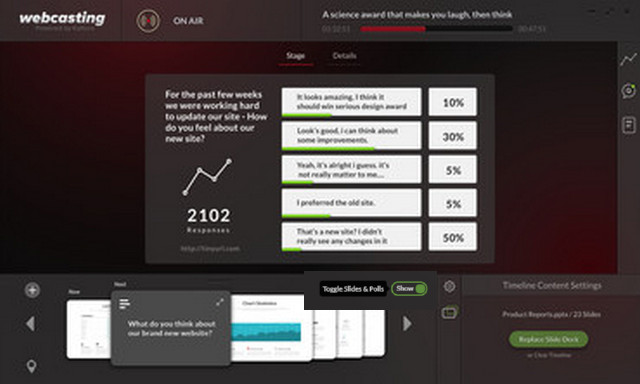 Presenter view showing live response results
Stopping the poll closes it for additional responses. Results are not visible to attendees until you share them.
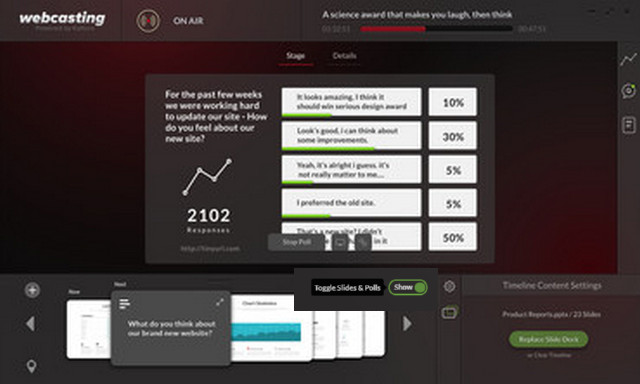 Poll closed in the presenter view (Stop Poll selected)
Show or hide slides and polls
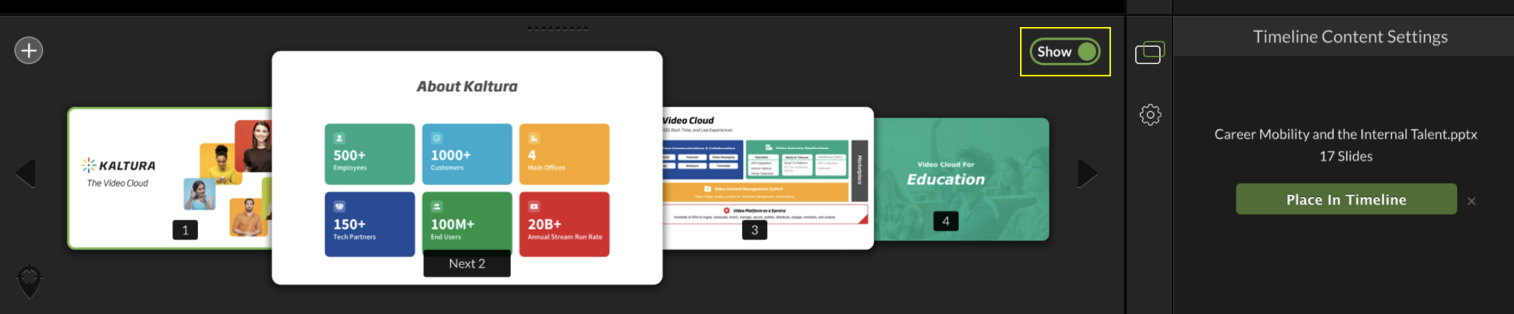
Use the Show/Hide toggle on the timeline to control whether slides and polls are visible to attendees during the broadcast. The default setting is Show.

This feature lets you:
- Run multiple polls during a broadcast
- Clear poll results from the screen after sharing them
- Control when slides or polls appear during the event
For example, after you click Share Poll Results, the results remain visible to attendees. If you want to clear the poll results and continue presenting, click Show/Hide to hide slides and polls. You can then continue the broadcast and run additional polls as needed.
In the following example, poll information is displayed to users.
 Show button is toggled on.
In the following example, poll information is hidden to viewers.
 Hide button is toggled on.
When slides and polls are hidden:
- Poll content is not visible to attendees
- New chapter slides are not displayed
- An indication appears on the Producer Application stage showing that content is hidden
If there are no slides or polls in the Timeline, the Show/Hide button is disabled.
Presenters can toggle Show/Hide at any time during the event to stop or resume displaying slides or polls.
Example of the stage view when the Show/Hide toggle is set to Hide:

Share poll results
- Click Share Poll Results. The results are displayed to attendees. The top response is highlighted.
- To return to your presentation, click the slide deck in the timeline. You can reopen the poll from the Timeline at any time to view the results again.
Export poll results
After the broadcast, you can export poll results as a CSV file.
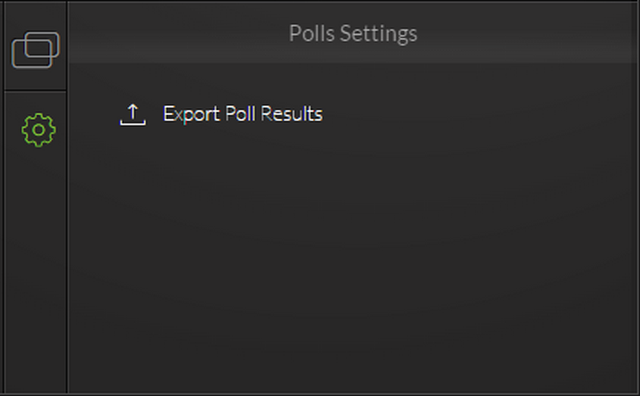
- Click the Polls settings icon.
- Click Export Poll Results.
- In the 'Save As' window, choose a location.
- Click Save.
The CSV file is saved to your device.