About
Before Salesforce can receive data from Kaltura Virtual Events, you need to set up statuses, a custom field, and two custom objects in Salesforce.
Set up campaign members
Add campaign member statuses
The Campaign Member object represents an attendee of a Kaltura Virtual Events event.
To let Kaltura update the registration and attendance status of your campaign members, first create the statuses that Kaltura sends. Add the following Kaltura statuses to your campaign member statuses:
CreatedInvitedRegisteredConfirmedautoConfirmedAttendedParticipatedBlockedUn-registered
You can set up the statuses one time and use Clone with Related (Clone on classic) or Flows to create campaigns for new events. To learn more about campaign member statuses, see the Salesforce documentation on campaign member statuses.
For the third-party mapping with Salesforce, Kaltura sends the most detailed status available. For example, a status that appears as Registered in Kaltura Virtual Events appears in Salesforce as Confirmed email or Registered no confirmation required. Marketers can use these details to send the right emails before, during, and after the event.
Kaltura can send the following statuses to Salesforce:
SSO loginInvited by team member(appears asInvitedin Kaltura Virtual Events)Invited by team member to register(appears asInvitedin Kaltura Virtual Events)RegisteredConfirmed email(appears asRegisteredin Kaltura Virtual Events)Registered no confirmation required(appears asRegisteredin Kaltura Virtual Events)Pre-event visit(appears asAttendedin Kaltura Virtual Events)During-event visit(appears asAttendedin Kaltura Virtual Events)BlockedUn-registered
Add a custom field
In addition to the campaign member statuses, edit the campaign member object and add a custom field named external_id. This field holds a value made up of ${campaign id}_${lead id}. For example, 70103000000cnFXAAY_00Q0300000AczgfEAB. The field must be at least 50 characters and at most 200 characters.
Set the field as required, unique (case insensitive), and External ID. The following image shows an example.
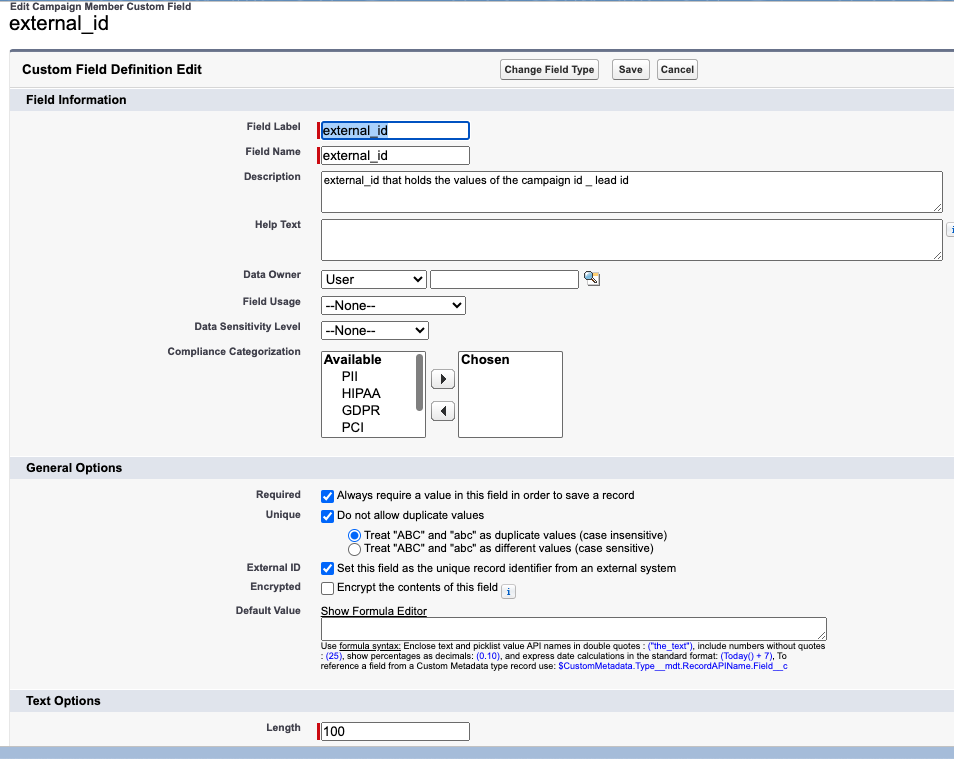
To learn more about custom fields, see the Salesforce documentation on creating custom fields.
Create the custom objects
Kaltura captures the actions that an attendee takes during an event and securely shares them with Salesforce as activities. Marketers can use this information to score leads, trigger campaigns, and send timely, relevant communications.
To learn how to create a custom object, see the Salesforce documentation on creating a custom object. Then use the following tables to create the custom objects in your Salesforce account.
Custom object name: UserSessionEngagement
To get Kaltura Virtual Events user engagement data, you must create a new custom object and name it UserSessionEngagement.
If you already created the UserSessionEngagement object, update the existing combined_live_engaged_users_play_time_ratio field to use the name combined_live_engaged_usr_play_time. You don't need to create a new field. Salesforce limits field names to 40 characters, so the original name is too long.
Add the following fields:
| Field | Data type | Description |
|---|---|---|
campaign_member |
Text (100) | Holds the ID of the corresponding campaign member |
Lead |
Lookup (Lead) | Lookup to a lead |
entry_id |
Text (11) | The ID of the media entry that was watched |
entry_name |
Text (200) | The name of the media entry that was watched |
email |
The email of the user who attended the session | |
user |
Text (200) | Kaltura user ID |
channel_id |
Number (18,0) | The ID of the channel the content was consumed from |
channel_name |
Text (200) | The name of the channel the content was consumed from |
plays |
Number (18,0) | Number of plays |
vod_minutes_viewed |
Number (16,2) | Number of minutes VOD content was consumed |
live_minutes_viewed |
Number (16,2) | Number of minutes live content was consumed |
total_vod_completion_rate |
Number (16,2) | VOD content completion rate |
no_live_engagement_rate |
Number (16,2) | Percentage of viewing time that the tab is not in focus and the player is on mute |
low_live_engagement_rate |
Number (16,2) | Percentage of viewing time that the tab is in focus and the player is on mute |
fair_live_engagement_rate |
Number (16,2) | Percentage of viewing time that the tab is not in focus and the sound is on |
good_live_engagement_rate |
Number (16,2) | Percentage of viewing time that the tab is in focus and the sound is on |
high_live_engagement_rate |
Number (16,2) | Percentage of viewing time that the tab is in focus and the player is in full screen |
clap_clicked_count |
Number (18,0) | Number of times the user selected the clap reaction |
heart_clicked_count |
Number (18,0) | Number of times the user selected the heart reaction |
think_clicked_count |
Number (18,0) | Number of times the user selected the think reaction |
wow_clicked_count |
Number (18,0) | Number of times the user selected the wow reaction |
smile_clicked_count |
Number (18,0) | Number of times the user selected the smile reaction |
answered_polls |
Number (18,0) | The number of polls the user responded to |
messages_sent_group |
Number (18,0) | The number of messages the user sent in group chat |
qna_threads |
Number (18,0) | The number of threads of the user |
combined_live_engaged_usr_play_time |
Number (16,2) | A number that represents the viewing engagement of the attendee |
add_to_calendar |
Number (18,0) | The number of times the user selected the add to calendar option |
mic_on |
Number (16,2) | Total time the microphone is on |
cam_on |
Number (16,2) | Total time the camera is on |
total_reactions_activity |
Number (18,0) | Number of times the user selected any type of reaction |
raise_hand |
Number (18,0) | The number of times the user raised their hand in this session |
Custom object name: Kaltura_User_Polls_c
To get Kaltura Virtual Events user polls data, you must create a new custom object and name it Kaltura_User_Polls_c. Add the following fields:
| Field | Data type | Description |
|---|---|---|
campaign_member |
Text (100) | Holds the ID of the corresponding campaign member |
Lead |
Lookup (Lead) | Lookup to a lead |
entry_id |
Text (11) | The ID of the media entry that was watched |
entry_name |
Text (200) | The name of the media entry that was watched |
email |
The email of the user who attended the session | |
poll_1_type |
Text (255) | The visual type of this poll, for example, rating scaled or crowd vote |
poll_1_answer |
Text (255) | User-submitted answer to the poll. Up to 255 characters. |
poll_1_question |
Text (255) | Client-determined poll question asked to the audience. Up to 255 characters. |
poll_2_type |
Text (255) | The visual type of this poll, for example, rating scaled or crowd vote |
poll_2_answer |
Text (255) | User-submitted answer to the poll. Up to 255 characters. |
poll_2_question |
Text (255) | Client-determined poll question asked to the audience. Up to 255 characters. |
Continue the same pattern for polls 3 through 10: poll_3_type, poll_3_answer, poll_3_question, and so on.
Kaltura supports up to 10 polls per session (30 data points).