About
Sometimes your media needs an update after you've shared it. Replacing media swaps the file while the media entry keeps its metadata, entry ID, URL, and analytics.
You can replace video, audio, image, and document entries, such as PDF, DOC, and DOCX files. The new file must be the same media type as the original. For example, you can't replace an image with a video.
If the media entry is in a moderated category, the updated media moves to pending moderation. In categories without moderation, the updated media stays published.
This feature requires the Replacemedia module to be enabled.
- You can't replace Live, Kaltura Room, Quiz, or YouTube entries.
- Time-based metadata, such as captions or chapters, may no longer match the new file. You might need to update it manually.
Go to the Assets tab
- Go to your My Media.
- Select the three dots to the right of the media you want, and then select Edit.
- In the left panel, select the Assets tab.


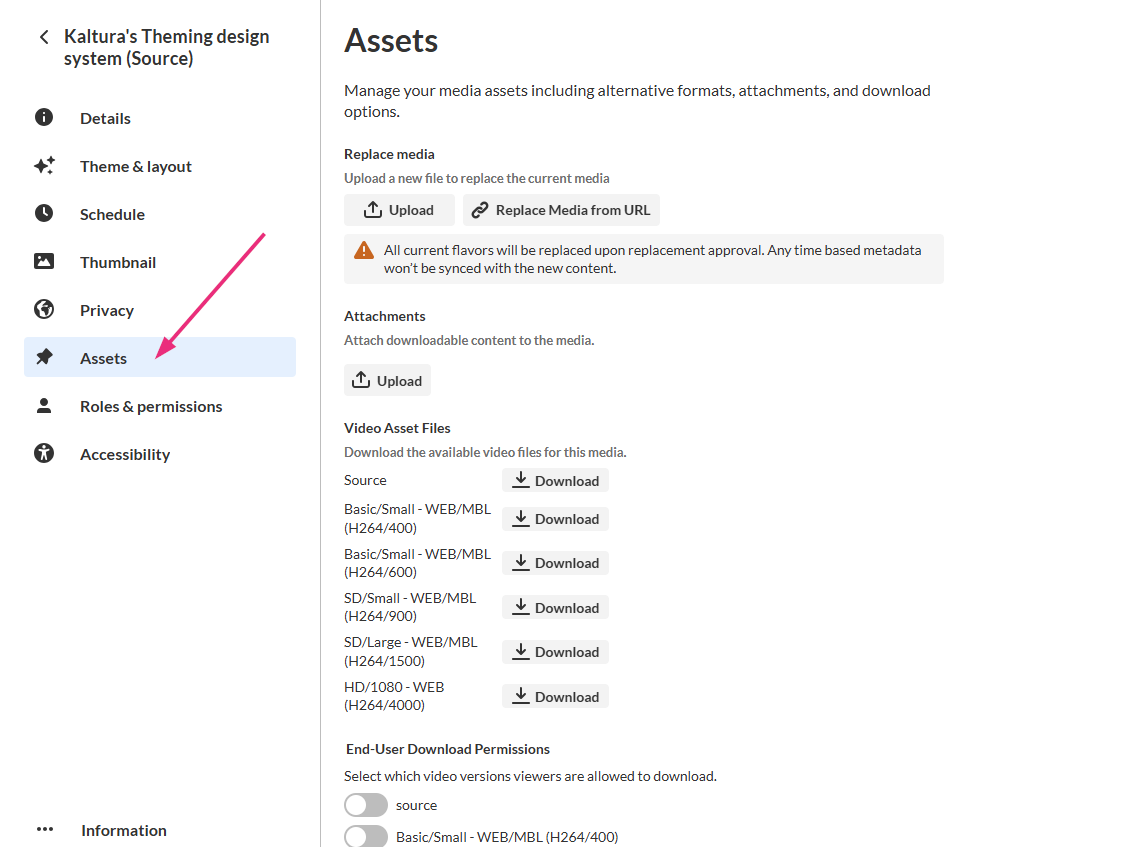
Replace media
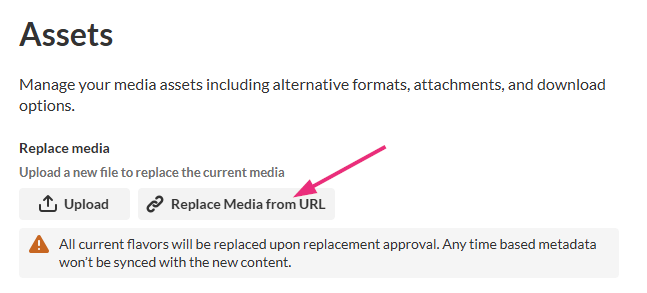
Upload a new file from your computer, or import it from a URL. Changes on the Assets page apply immediately, so there's no Save button.
Upload from your computer
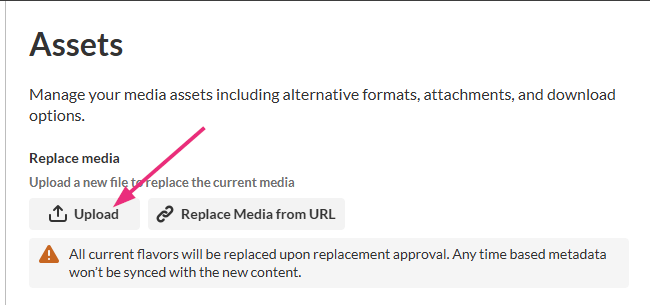
- Select Upload.
- Select the file you want from your computer. The upload starts immediately. After the upload, the media is processed automatically, and the new media replaces the existing asset.
- Open the media page and check that the media is updated.
Replace from a URL
A Google Drive file must be publicly accessible. In Google Drive, select the three dots for the file, select Share, and then select Anyone with the link.

- Select Replace media from URL.
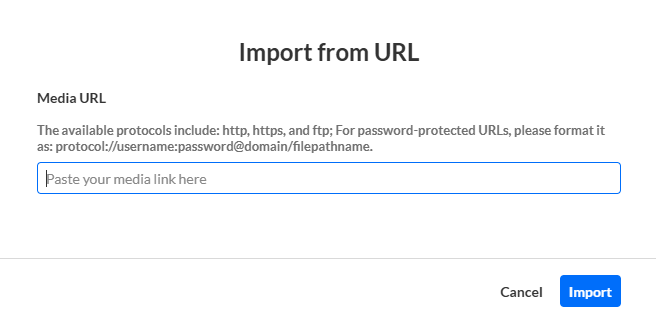
- Enter a valid URL in the box. The URL can use HTTP, HTTPS, or FTP.
- Select Import.