About
The Kaltura LMS Video integration connects LMS roles with Kaltura roles using the LIS standard.
When a user is assigned a role in the LMS (for example, Instructor or Learner), the LMS sends the corresponding LIS role to Kaltura. The LMS Video integration maps this LIS role to Kaltura roles, granting the correct permissions for tools such as My Media, Media Gallery, and Browse, Search, and Embed.
Each LIS role is mapped to one or more Kaltura roles, which are configured in the Hosted module of the Configuration Management console:
ltiRole (1) This is the LIS role sent by the LMS, according to the user's role in the LMS.
kmsRole (2) - This is the KAF applicative role, set by the administrator to define permissions outside of the site context (My Media, Browse, Search & Embed)
kmsContextualRole (3) - This is the KAF contextual role, set by the administrator to define permissions inside the site context (My Media, Browse, Search & Embed).
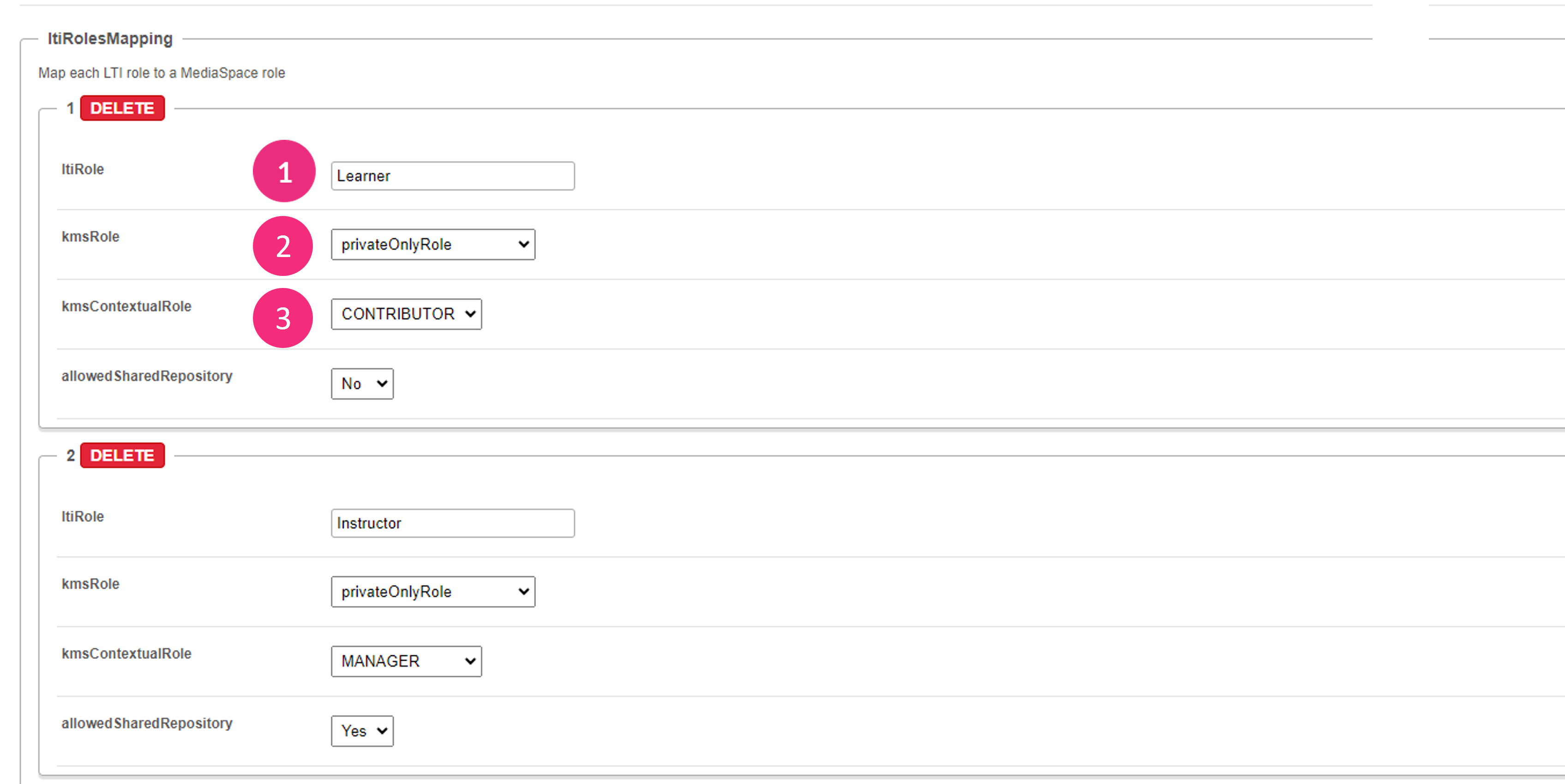 Hosted module
Role permissions
Applicative role
Defines the user roles and permissions in Kaltura widgets that are out of course context (for example, My Media):
- viewerRole: No access to My Media, no ability to upload content.
- privateOnlyRole: Full access to My Media, can upload and create content.
Contextual role
Defines the user roles and permission in Kaltura widgets when in a course (site) context (for example, Media Gallery):
- Member: Can view content but not contribute content to the Media Gallery.
- Contributor: Can view Media Gallery entries and upload and contribute entries from My Media (if applicative role is privateOnlyRole). Students are usually assigned 'member' or 'contributor' contextual roles.
- Moderator: Can moderate content published to a Media Gallery, and contribute new content. Teaching Assistants usually have 'moderator' contextual roles.
- Manager: Full control over Media Gallery settings and analytics. Instructors usually have 'manager' contextual roles.
Common use cases
Allow students to upload content
- All users can create and upload content to Media Galleries.
- LMS and KAF Configuration: Set learners to privateOnlyRole (Applicative) and Contributor (Contextual).
Restrict content creation to faculty
- Only faculty can upload and create content. Students can’t access My Media or contribute to Media Galleries.
- LMS and KAF Configuration: Hide the My Media link for students in the LMS, and set them to viewerRole (Applicative) and Member (Contextual).
- Important note about My Media visibility: Setting learners to 'viewerRole' prevents access to My Media at the Kaltura level. However, some LMSs may still display the My Media link by default. If the My Media link is visible but access is blocked, users may see an “Access Denied” message. To avoid this, additional LMS-side configuration may be required to hide the My Media link for learners in the LMS UI. This configuration is LMS-specific and optional, depending on your desired user experience.
Default role mapping
| LMS role | Kaltura applicative role | Kaltura contextual role |
| Learner | privateOnlyRole | Contributor |
| Instructor | privateOnlyRole | Manager |
This streamlined mapping ensures that users have the appropriate permissions and access based on their LMS roles, allowing for seamless integration between the LMS and Kaltura.
