About
You can manage ownership and permissions for a playlist by assigning an owner and adding collaborators with different permission levels, such as editing, publishing, or viewing.
To learn more about roles and permissions, visit our article Manage user accounts in Rich Media CMS.
Access the Users tab
- Log into your Rich Media CMS.
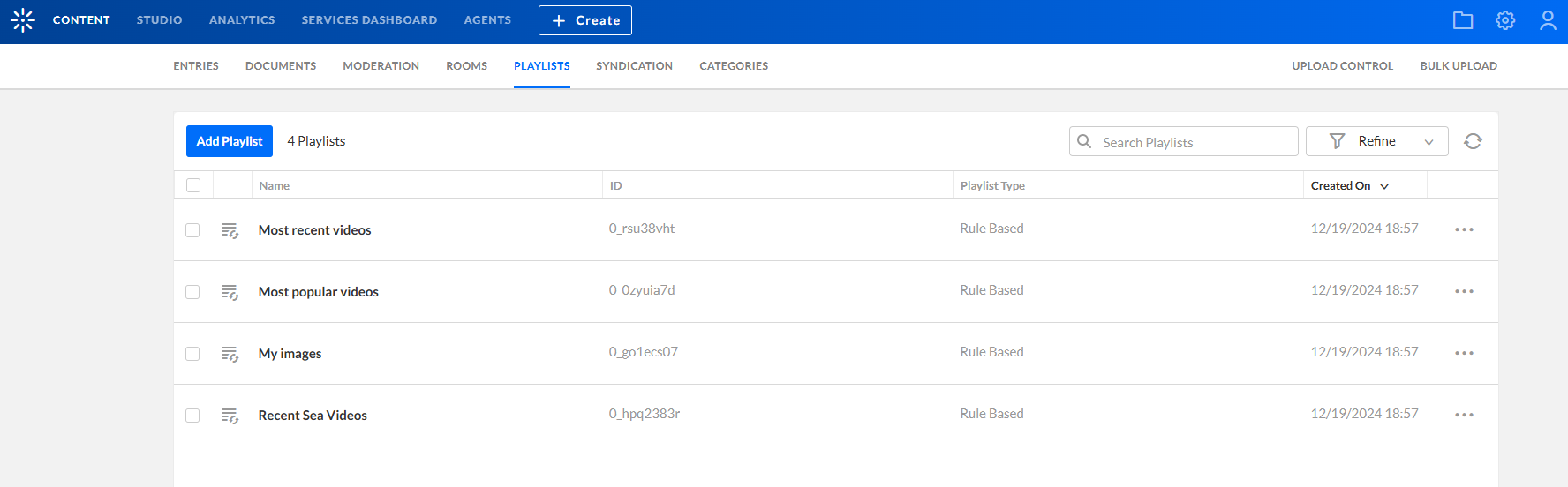
- Click the Playlists tab at the top of the page.
- Select the desired playlist.
- In the left panel, click the Users tab.

The 'Playlists' page displays.
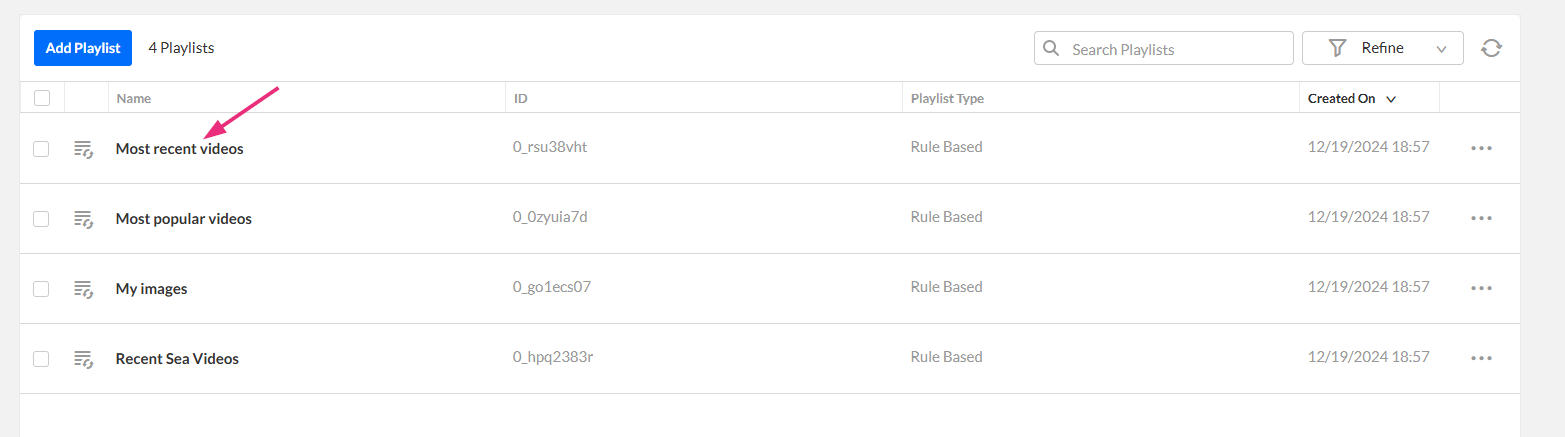
The playlist details page displays.
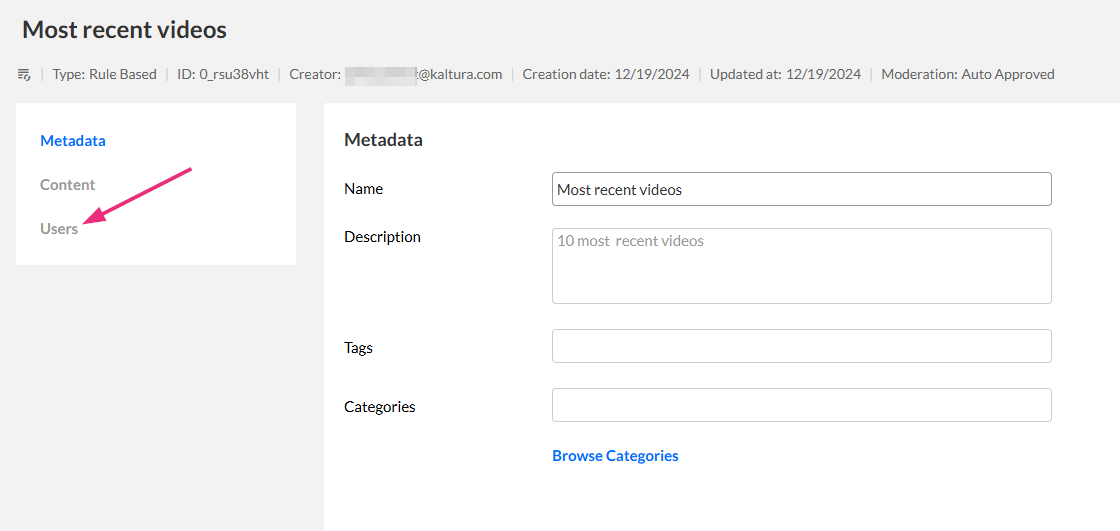
The 'Users' page opens.
Change the playlist owner
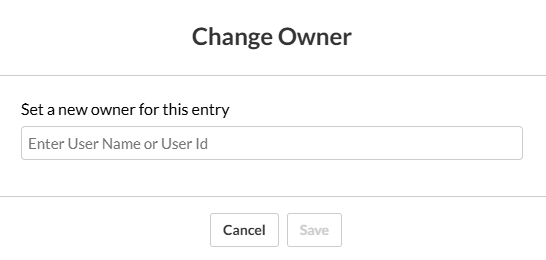
- On the Users page, next to the owner, click Change Owner.
- Type a user's name in the search field, then select the user from the list.
- Click Save.
The 'Change Owner' window opens.
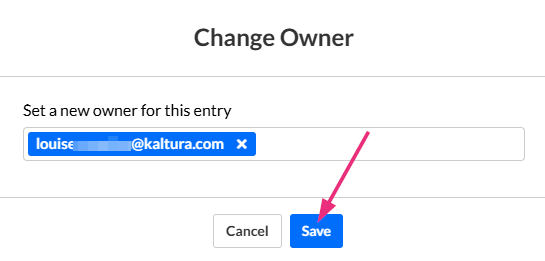
The new owner replaces the current one.
Add or remove collaborators
You can assign users to the following roles:
- Co-editors – can edit the playlist
- Co-publishers – can publish the playlist
- Co-viewers – can view the playlist but can’t edit or publish
Each role is managed separately. A user can be added to more than one role if needed.
To learn more about roles and permissions, visit our article Manage user accounts in Rich Media CMS.
Add a collaborator
- On the Users page, locate the relevant section (for example, Co-editors).
- In the input field, type at least 3 characters of the user’s name or ID. A list of matching users displays.
- Select the user from the list.
- Click Save at the top right.
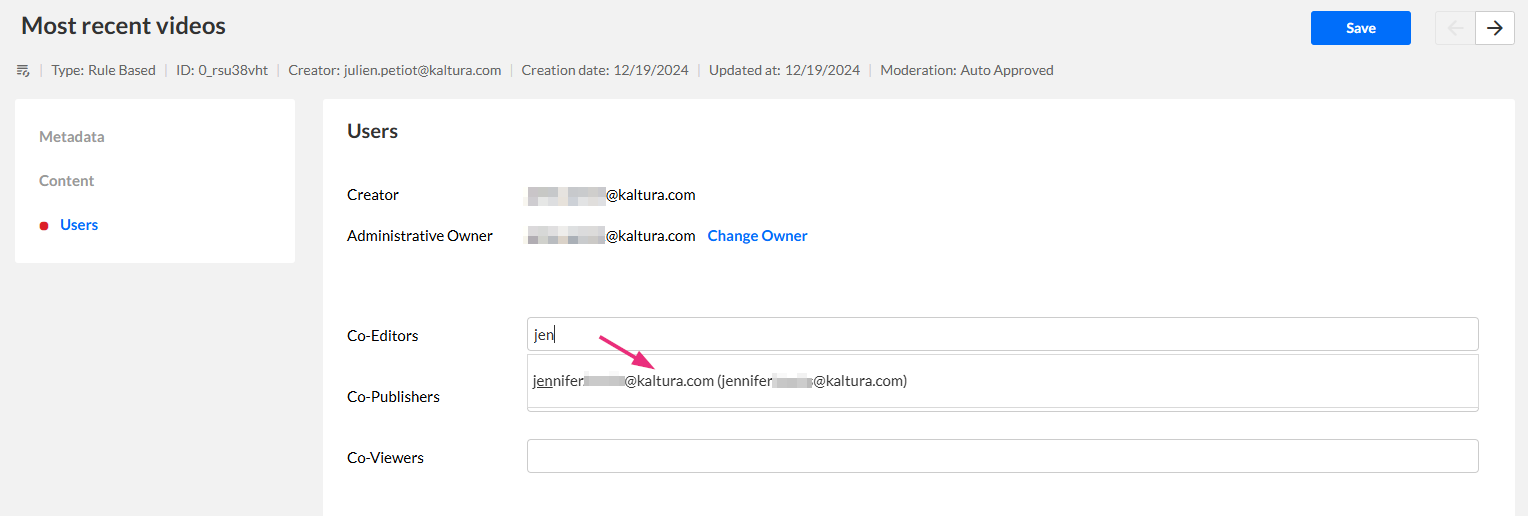
The user is added to the list for that role.
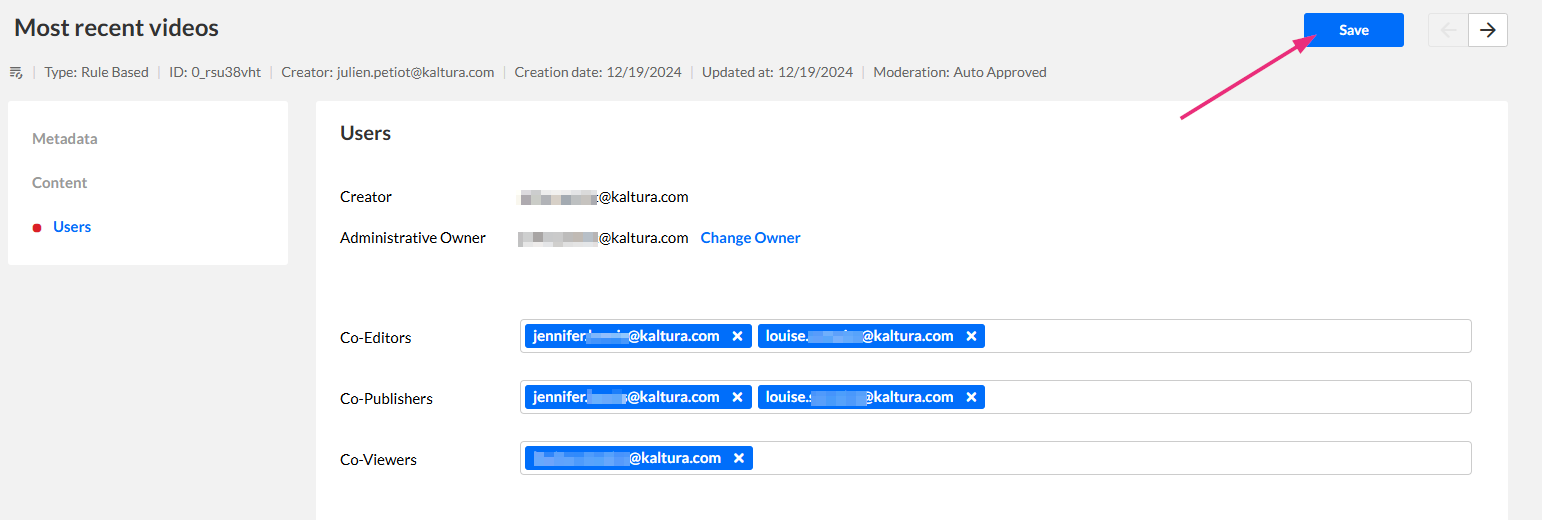
Remove a collaborator
In the relevant section (for example, Co-editors), locate the user in the list.
- Click the X next to the user’s name.
- Click Save.

The user is removed from the list.
