About
Crowd vote questions in Kaltura Events enable participants to actively contribute ideas and vote on suggestions in real time. This interactive feature allows participants to submit responses and support he ideas they find most valuable, helping moderators quickly identify popular onions or priorities within the audience. Crowd voting encourages collaboration, increases engagement, and gives participants a stronger voice during the event.
This article explains how to create and use crowd vote questions in Kaltura Events to gather and highlight audience-driven input.
Create and publish a crowd vote poll
- Click Crowd vote to begin creating a crowd vote.
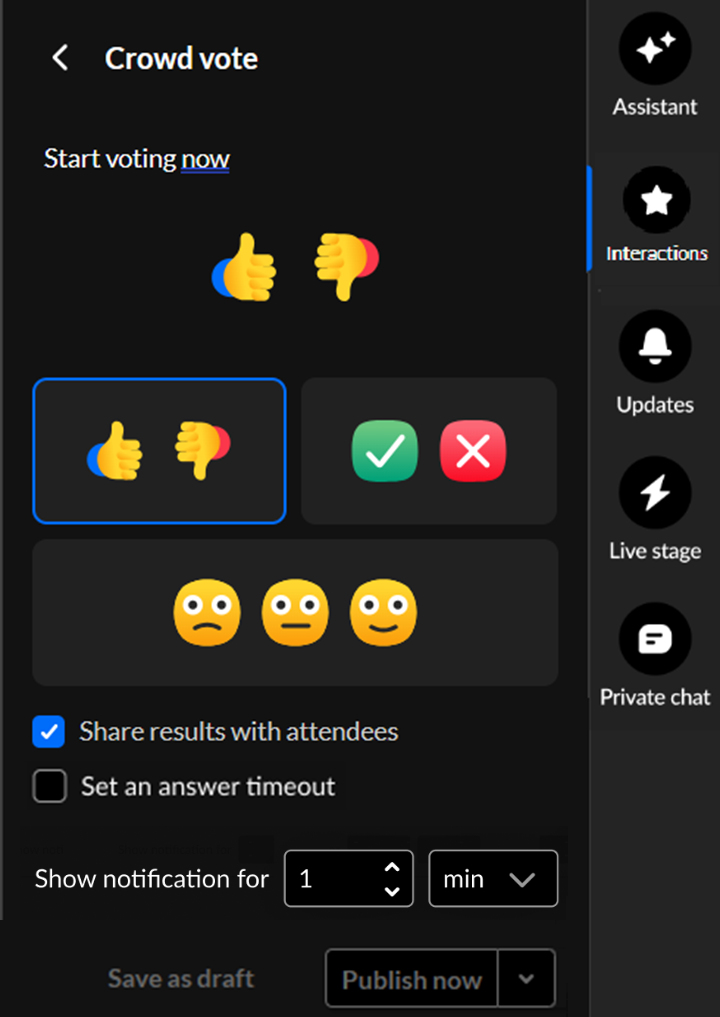
- Type your question/statement and choose your crowd vote emoji.
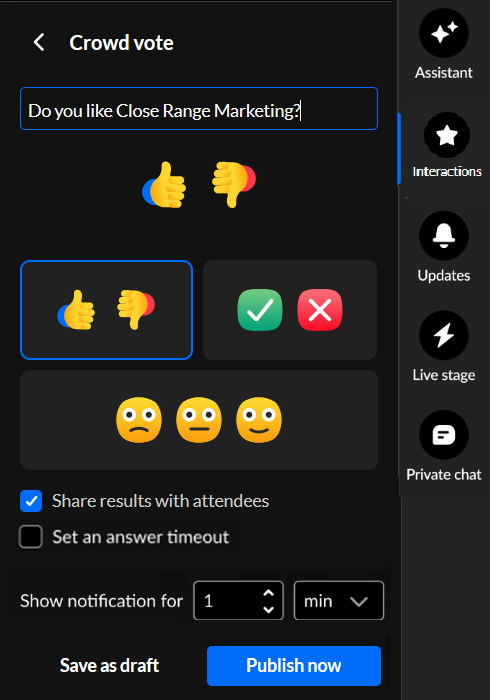
- Decide whether to share results with attendees.
- You may set an answer timeout (a response window for users) that controls how long the poll stays active. If enabled, an additional configuration displays, "Set time out of". Use the up and down arrows to set the number of minutes the poll will be available for users to answer.
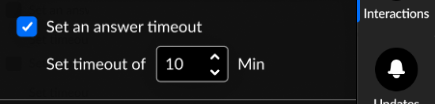
- Default response window is 5 minutes
- Minimum is 1 minute and maximum is 120 minutes
During this time, participants see a countdown indicator. When the timer runs out, the poll automatically concludes.
5. You may specify how long the crowd vote poll notification will be visible to users. Use the up and down arrows to set the number of minutes or seconds the crowd vote poll notification will be shown. 
- When set to seconds, minimum is 5 seconds and maximum is 60 seconds
- When set to minutes, minimum is 1 minute and maximum is 10 minutes
6. Decide whether to save as draft, schedule, or publish now.
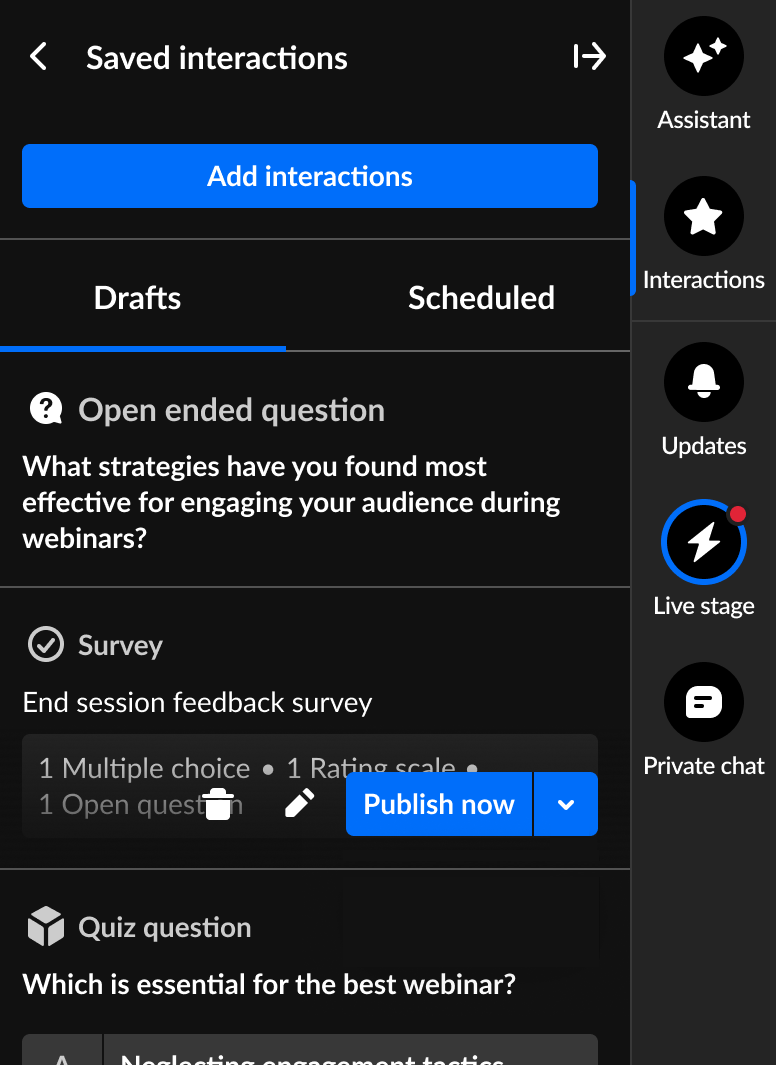
- Save as a draft - Click Save as draft. After you've saved an interaction as a draft, you may access it through the Drafts tab of Saved interactions. Hover over the draft and choose the appropriate option. Please note, interactions cannot be modified within 2 minutes of scheduled time.
- Schedule - See Schedule interactions.
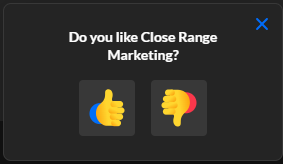
- Publish now - Click Publish now. The interaction is published to your attendees immediately, initially displaying as a small toast popup in the lower left corner of the screen (example shown below), then displaying in the Feed sub-tab of the Live stage tab.
Interested in exploring other interaction tools? Click here!
