About
You can give your Content Hub or KAF application a web address that uses your organization's own domain. For example, instead of accessing your application at 12345.mediaspace.kaltura.com, users can access it at video.yourdomain.com.
This custom web address is called a hostname (or alias hostname). You can add and manage hostnames and configure SSL certificates to ensure your site is securely available through your chosen domain.
Prerequisite
To set up a new hostname, configure a CNAME DNS record that points your custom hostname (for example, video.yourdomain.com) to your Kaltura application hostname (for example, 12345.mediaspace.kaltura.com).
For more information, see Set up Alias Hostname for Content Hubs and KAF.
Access the Application Hostnames page
- Go to your Configuration Management console, locate the Hostnames module in the left panel, then select it. You can also navigate directly: https://{your_site_URL}/admin/config/tab/hostnames.
- Set enabled to 'Yes'.
- Click Save.
- At the top of the page, click Navigate to the hostnames page.
If you don't see this module in your list, please contact your Kaltura representative to enable it for you.
The Hostnames page displays.


The Application Hostnames page opens.

Here you can see all current hostnames for the application.
Add a hostname
1. Click +Add Hostname at the top right of the Application Hostnames page.

The Add Hostname window opens.

The Kaltura application hostname displayed in the window (for example, 12345.mediaspace.kaltura.com) is the target for your DNS CNAME record. Configure your custom hostname to point to this address before continuing.
2. Click Start.
A new screen displays with a Hostname field.

3. Enter the hostname configured in the DNS CNAME record (for example: video.yourdomain.com)
4. Click Next to continue.
The Add Hostname screen displays.

5. Under SSL certificate type, choose how the SSL certificate will be handled:
The SSL certificate type can't be changed after setup. To use a different type, delete the hostname and create a new one.
- Managed - Kaltura handles the certificate provisioning and automatic renewal, so no manual setup is required.
- Certificate issuer - Select SSL.com (default), Let’s Encrypt, or Google.
- Custom - Choose this option if you want to provide and manage your own SSL certificate.
- After selecting Custom, additional fields display.
- Enter the following:
- Custom SSL certificate - Paste the PEM-encoded certificate chain.
- Private key - Paste the PEM-encoded private key.
- Match the private key
- Include the exact hostname (CN or SAN)
- Be valid (not expired or not yet valid)
- Single-domain certificates
- Multi-domain (SAN) certificates
- Wildcard certificates
- Encrypted private keys
- Non-PEM formats

The certificate must:
Supported certificate types:
The following aren't supported:
If the certificate or key is invalid, inline error messages are displayed.

6. Click Next.
A confirmation screen with the hostname and SSL details displays.

7. Review the details, then click Set domain.
The hostname is added with a Pending status.

The status updates automatically once setup is complete.
Manage hostnames
You can manage each hostname by selecting actions from the three-dot menu next to it.
The available actions depend on the hostname configuration.
 Three-dot menu with available hostname management options
Set a main alias
The main alias is the primary domain used for your application.
- In the Application Hostnames table, locate the desired hostname and click the three dots at the end of the row.
- Select Set as main alias.
The hostname is set as the main alias. Only one hostname can be set as the main alias at a time.
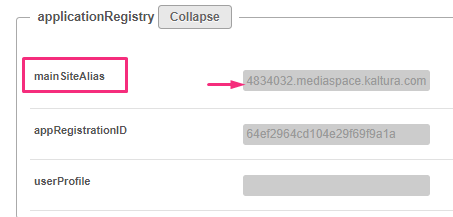
The main alias you choose will automatically appear in the Application module in the mainSiteAlias field (as shown in the image below).
Delete hostname
- Select Delete hostname from the three-dot menu. A confirmation message displays.
- Click Delete. The hostname is removed from the application.
If the hostname is set as the main alias, you must set a different hostname as the main alias before deleting it.
