About
Note - The Private chat tab is available only in Kaltura Virtual Events. If you do not see the Private Chat tab, your event experience or configuration may not support private attendee-to-attendee messaging.
The Private chat tab allows attendees, moderators, and speakers to connect and chat one-on-one with other event participants. Users can search for attendees, send connection requests, and start private conversations after a request is accepted.
What can I do with the Private chat tab?
With the Private chat tab, you can:
- Find and connect with other event participants
- Send private chat requests
- Accept or ignore incoming connection requests
- Have one-on-one conversations outside of the public chat experience
- Continue conversations after a session has ended
Start a private chat
- On the session page, click Private chat in the right navigation. The Private chat panel opens.

- Click Connect with attendees.

- Browse the suggested connections.
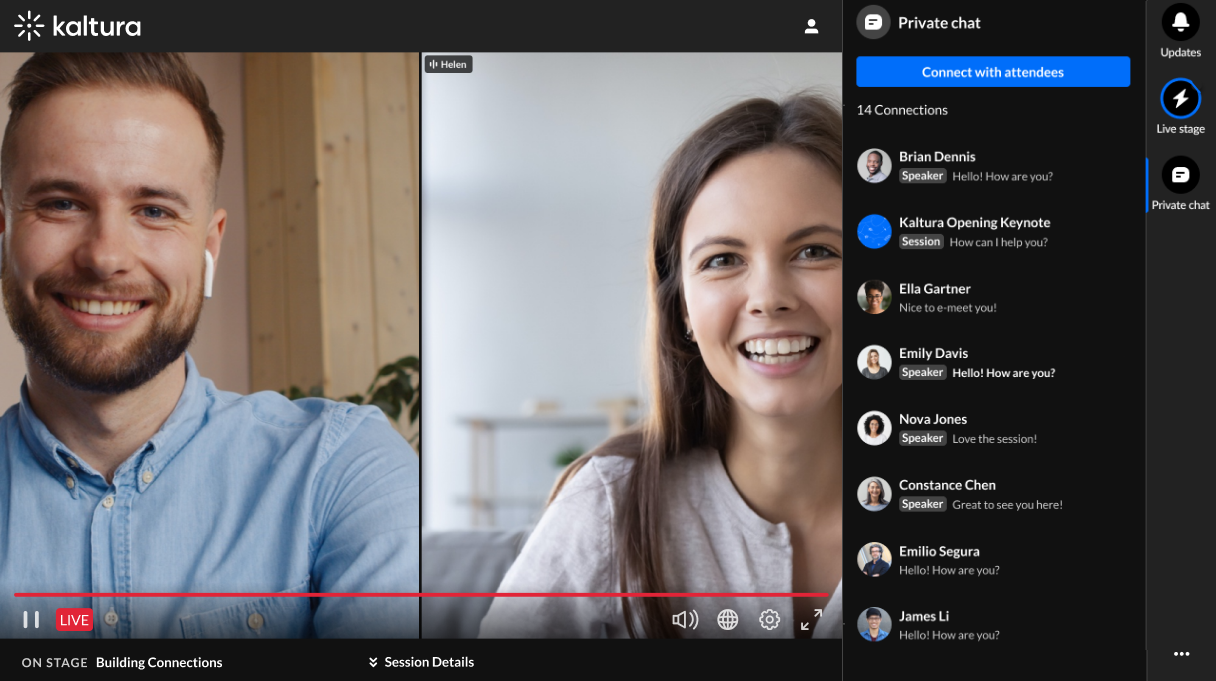
You can also use the search bar to find a participant.
- Select the participant you want to connect with.
- A connection request is sent to that participant.
The request remains pending until the recipient chooses to accept or ignore it.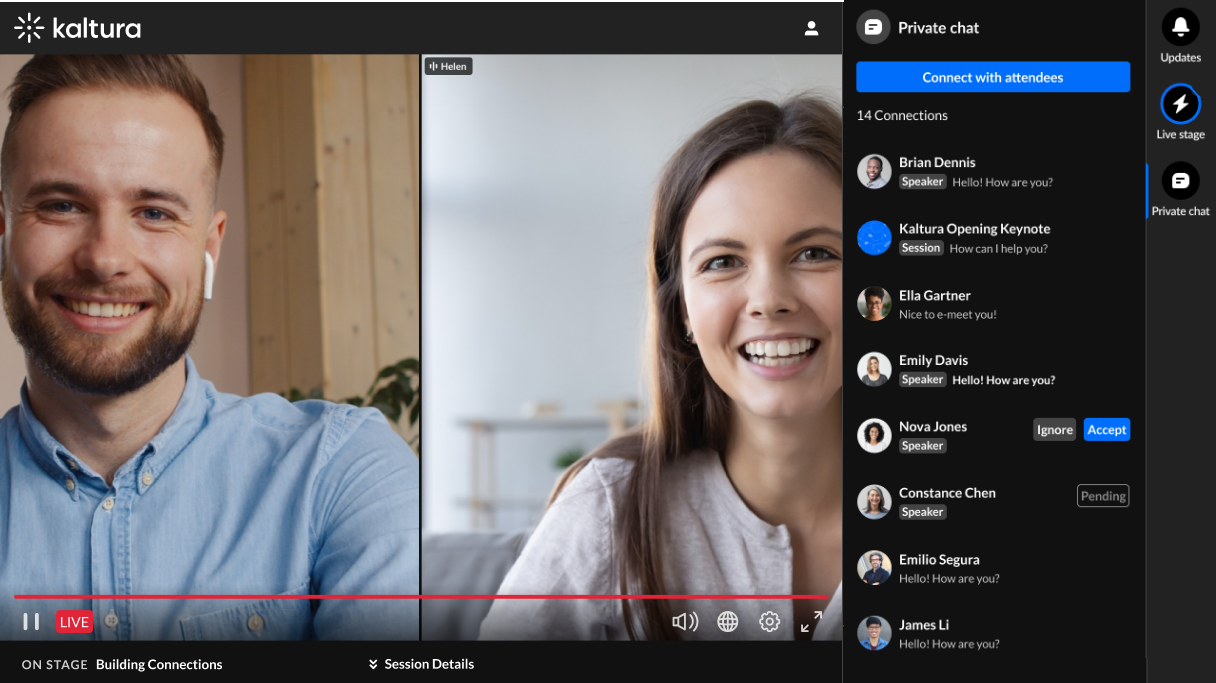


Manage connection requests
When another participant wants to chat with you, you'll receive a connection request.
You can:
- Accept the request to start a private chat
- Ignore the request if you do not want to connect
Once a request is accepted, the private chat becomes active and both participants can begin messaging.
About private conversations
Private chats are not tied to a specific session or stage. Conversations continue independently of the event session and remain available after the session ends. This allows participants to continue networking and collaborating throughout the event experience.
