About
The Chapters module allows authorized users to add, edit, and view chapters and slides within a media entry.
Configure
1. Go to your Configuration Management console and click on the Chapters module. You can also navigate to it directly using a link: https://{your_KMS_URL}/admin/config/tab/chapters.

The 'Chapters' page displays.

2. Configure the following:
enabled - Set to 'Yes' to enable the module.
enableFullDeck - Set to 'Yes' to allow users to upload a full slide deck to display alongside their media using the timeline (dual-screen view).
Supported formats include PPT, PPTX, PDF, and the following image types: *.3gp, *.jpg, *.jpeg, *.bmp, *.png, *.gif, *.tif, *.tiff.
3. Click Save.
User experience
After enabling the module, the Timeline tab is added to the edit media page.
Media owners and co-editors can use this tab to add chapters and slides by uploading images or slide decks and entering metadata.
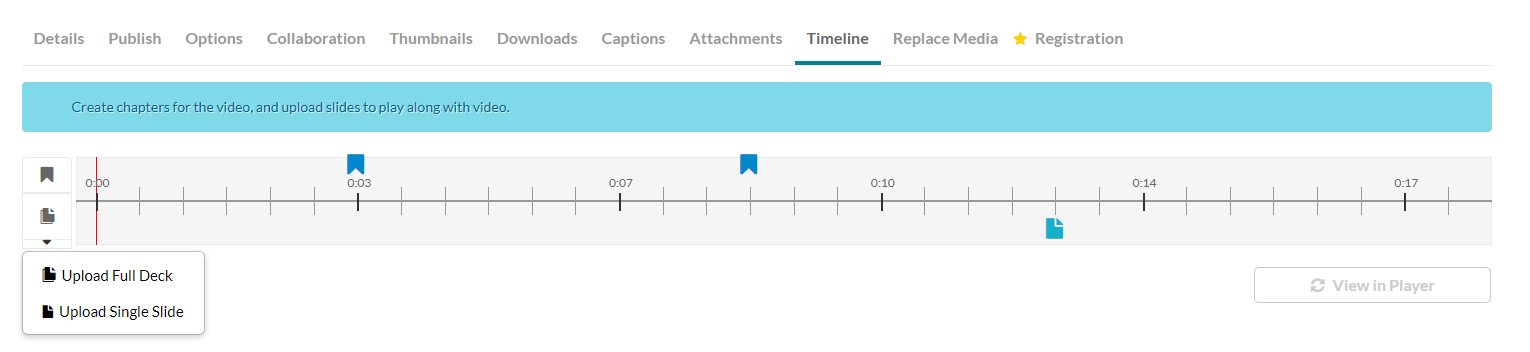
- Chapters are markers on the media timeline that provide context for specific segments.
- Slides are synchronized visual elements that appear alongside the main media. Slides are organized under chapters.
In environments configured with remote storage, slides are stored and delivered from that external storage location, similar to other media assets.
Uploading a .pptx file created in Apple Keynote may fail due to Microsoft file security settings. To resolve this, use one of the following options:
- Open the file in PowerPoint and save it again
- Convert the file to .ppt format
- Convert the file to .pdf format
