About
When you present a video in your Kaltura Room, it plays on stage for everyone in the session. You can choose a video that's already available, upload one from your computer, or import a public video from YouTube.
When you present a video or audio, your microphone is muted automatically. For more details, see Microphone control during media playback later in this article.
Present a video from your media
- Select Video from the Share content menu.
- Find the video you want. If you opened the media selector from Content Hubs, the legacy Video Portal, or Events, the window has two tabs:
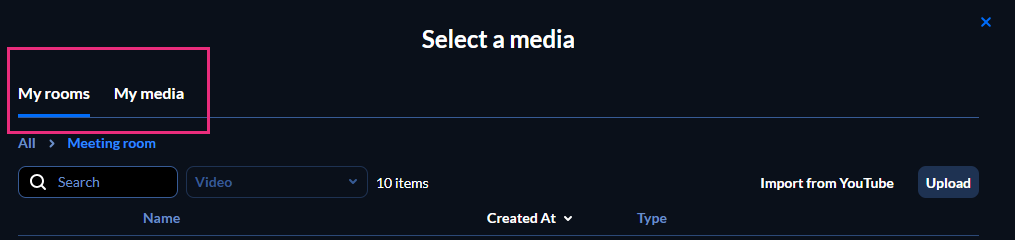
- My rooms - Media from rooms you have access to. Each room appears as a folder. Select All in the breadcrumb to see your rooms.
From the All tab, open a room's folder to select its media.

- My media - Media you own.
- My rooms - Media from rooms you have access to. Each room appears as a folder. Select All in the breadcrumb to see your rooms.
- Select Present.


Upload a video from your computer
- In the Select a media window, select Upload.
- Select the file from your computer.
- Select Present.

Import a YouTube video
Use only public YouTube videos. These are videos that anyone with the link can view, without logging in or needing special permissions.
YouTube videos added to your storyboard aren't included in recorded sessions, because of copyright limits. When you play back the recording, a slate shows that the content can't be recorded.
- In the Select a media window, select Import from YouTube.
- Paste the YouTube URL or video ID into the box.
- Select Import from YouTube. After the import completes, the video appears at the top of the list in the Select a media window.
- Select Present.


Microphone control during media playback
When you present a video or audio, the system gives priority to the media's audio. All microphones, including moderators', are muted automatically the moment the media starts playing.
To speak while the media is playing:
- Hover over the content area, and select Talk over media.
- When you finish, select Stop talking.


