About
You can lock your Kaltura Room to prevent additional participants from entering the session.
When the room is locked, new participants are placed in a waiting room until a moderator admits them. Users with host permissions can still join the room.
This feature can be useful when preparing a session, controlling when participants enter, or limiting access during meetings with external guests.
Lock the room
- Click the settings icon at the lower right of the screen, and select Lock room from the menu.
- Click Lock room. The Room locked indicator appears at the bottom left of the screen.

A confirmation message displays: Participants will be redirected to the waiting room.

Admit participants
While the room is locked, anyone attempting to join the room is placed in a waiting room.
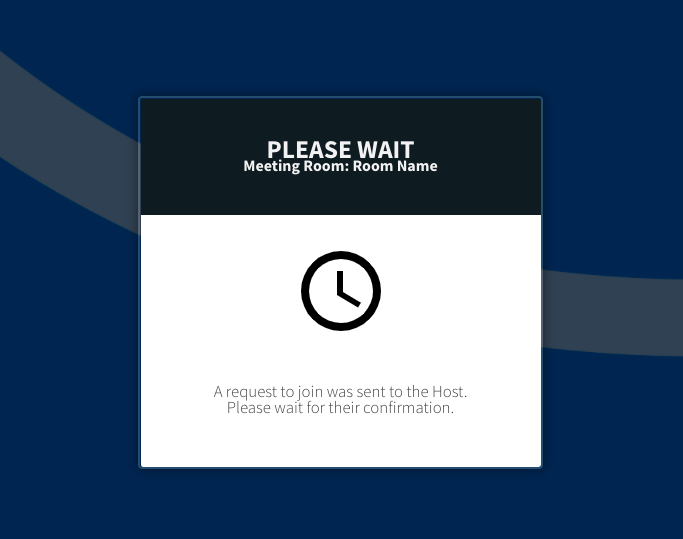
Moderators and hosts receive a notification for each person waiting to enter. From the notification, you can:
- Admit the participant
- Decline the request
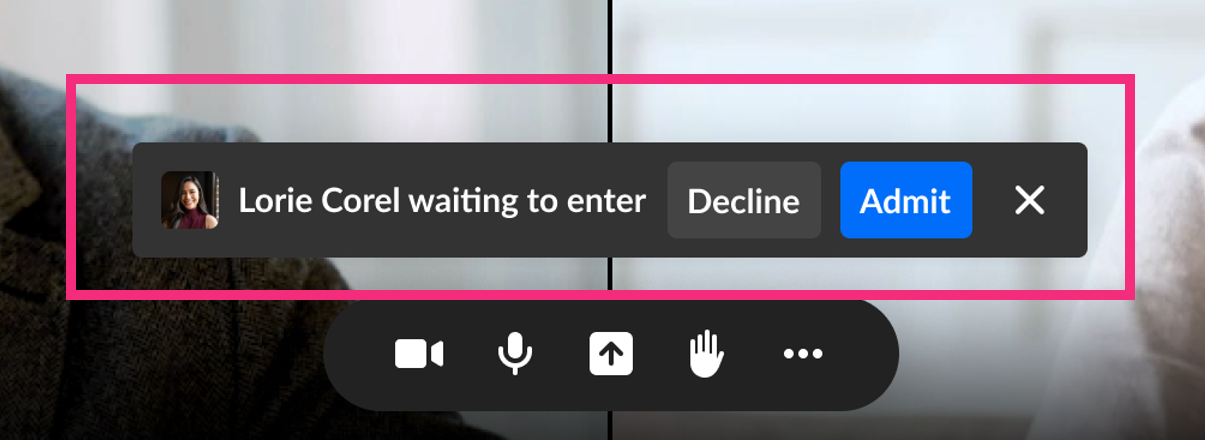
Admitted users enter the room automatically. Declined users are redirected to the page they used to enter the session.
If multiple users request access, the notification updates to show the number of people waiting.
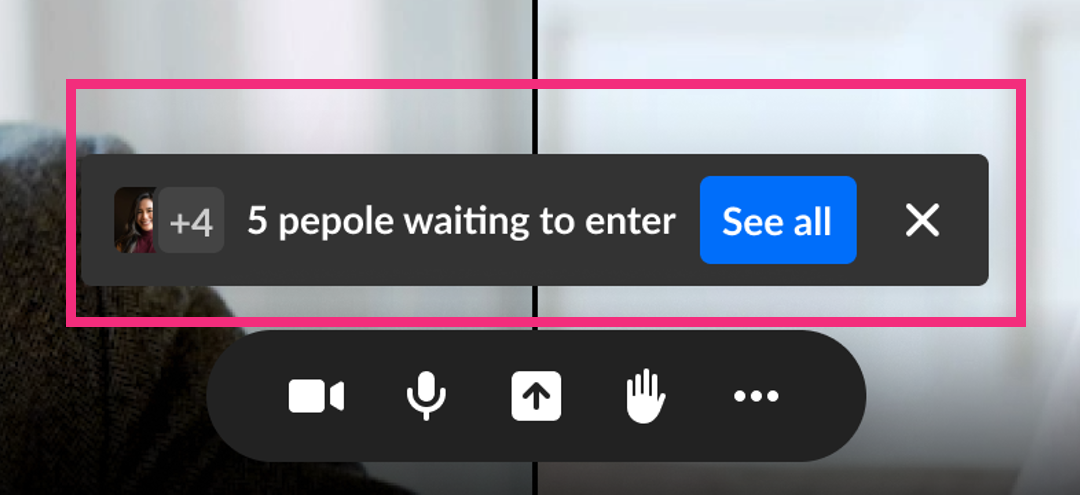
Click See all to view the full list of participants waiting to enter.
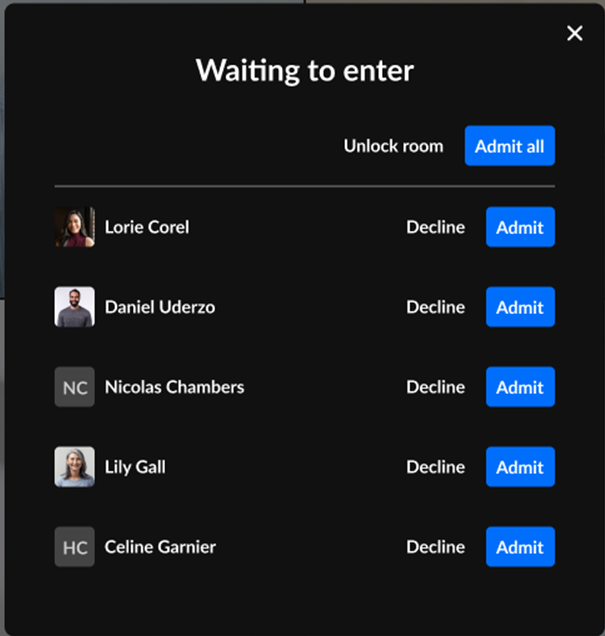
From this window you can:
- Unlock room - unlock the room and allow everyone to enter
- Admit all - admit all waiting participants while keeping the room locked
- Admit or decline individual participants.
Participants waiting to enter also appear in the Participants tab in the Chat & Collaboration (C&C) widget, where moderators can admit or decline requests.
For more information about accessing the Participants list and managing users in your room, see Manage participants in your Kaltura Room.
Unlock the room
- To allow participants to join normally again, click Room locked at the bottom left of the screen.
- Click Unlock room to confirm.

You can also click the Settings icon and select Unlock room.

A confirmation message displays: Allow all participants to enter the room.
The room remains locked until you manually unlock it in this way.
