About
Joining a session is quick and easy. After registering, you’ll receive an email with a link to join your session. Use this link to access your webinar, conference session, or virtual class.
If you encounter any issues entering a session, please reach out to your administrator or event organizer for assistance.
Session page

Key elements:
Live countdown displays up to the session start date and time.
"Session will start soon" displays at start time, but before the room has been launched by the Event organizer.
Join Session button displays once the room has been launched by the Event organizer and enables you to join the live session.
Start Meeting button - If you are a moderator, the Start Meeting button displays, allowing you to start the meeting at any time.
"Session Ended" displays once the session has ended.
Session title - The title given to the session by the Event organizer.
Session start date and time duration - When the session will start and how long it will last.
Add to Calendar button - Allows you to download the session details as a calendar invite (compatible with Outlook, Google, etc.).
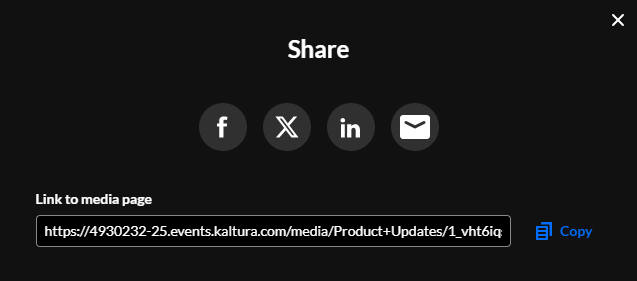
Share button - Clicking on the Share button opens a pop-up window with options to link to media page, embed or share via social media.
Speakers - Speakers who will be present for the session. You can click on a speaker's icon to view a pop-up with the speaker's bio, without needing to navigate away from the page.
Back to event button - A button that takes you back to the event site.
Session description - The description given to the session by the Event organizer.
Chat & Collaborate functionality - Functionality that allows you to receive notification of keynotes/live demos, chat and collaborate with colleagues/peers, and get in touch with moderators to ask questions.
Set your devices
Before entering the session, you are prompted to set your devices. For more information, see Manage your device settings in a Kaltura Room in Events.

Make any necessary adjustments to your devices, then click Join as viewer or Join stage button (as applicable) to enter the session.
- Join as a viewer - Joining as a viewer gives you basic capabilities in the session as a member of the audience. You can view whatever or whoever is on stage while your mic and camera are disabled. You'll also be listed in the viewer section of the participants list. You can interact in the room, whether by raising your hand or writing in the chat. In addition, depending on your permissions, you can present content too.
- Join stage - Clicking Join stage allows you to present in the room with your camera and mic enabled (you can toggle them off at any time).
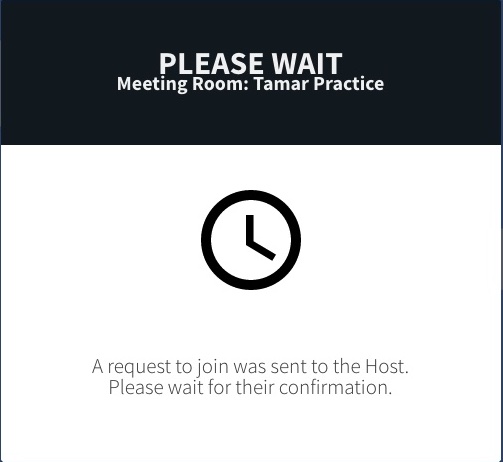
Please note - If the session is locked, you will see the following message until the host admits you: