About
Keeping your media library organized and up to date is key to maintaining a high-quality learning experience. Over time, you may need to remove outdated or unnecessary content.
This guide shows how to delete media from My Media in your LMS. If needed, you can restore deleted items from the Recycle Bin (if enabled).
For details, see Restore items from the Recycle bin.
You cannot delete published media. You must unpublish it before you can delete it.
Delete a single item
If you cannot access your My Media page content/actions or display editing tabs, as your administrator to give you the required permission.
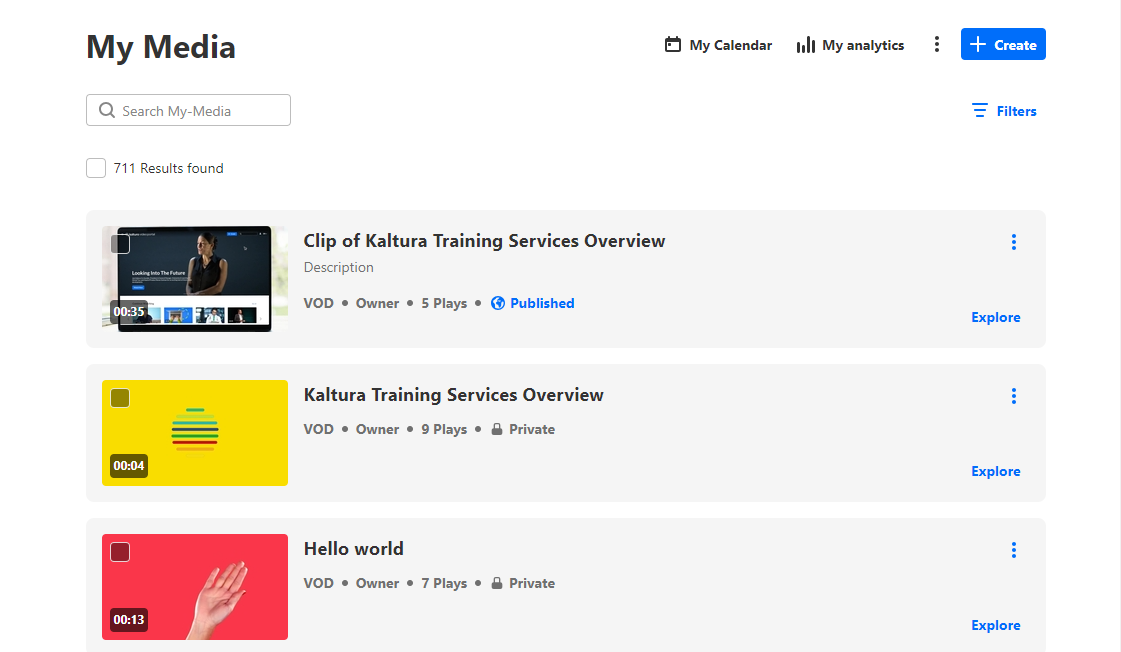
- Access the My Media page.
- Click the three dots to the right of the desired media and select Delete.
- Click Delete.

A confirmation message displays. The message varies based on whether the recycle bin is enabled:
Recycle bin is not enabled

Recycle bin enabled

OR
- On the My Media page, click on the thumbnail or title of the desired media.
- Click the three dots to open the menu.
- Click Delete.
- Click Delete.

The media page displays.


A confirmation message displays. The message varies based on whether the recycle bin is enabled.
Recycle bin is not enabled
Recycle bin enabled
Delete multiple items
- On your My Media page, check the boxes on the desired items.
- Scroll to the top of the page, and click Delete.
- Click Delete.
The Delete option doesn't display until you select at least one item.

A confirmation message displays. The message varies based on whether the recycle bin is enabled (see above).
