About
The Chat Settings page allows you to enable and disable conversations for your virtual classroom and define an automatic response for Q&A chats.
Enable and disable conversations
Two types of conversations are available:
- Private chat - Allows 1:1 chat conversations and search between attendees.
- Group chat - Allow attendees to participate in the session's group chat.
- Navigate to the Chat settings page; from the site page, choose Chat settings from the Interactions tab pull-down menu.
The Chat settings page displays.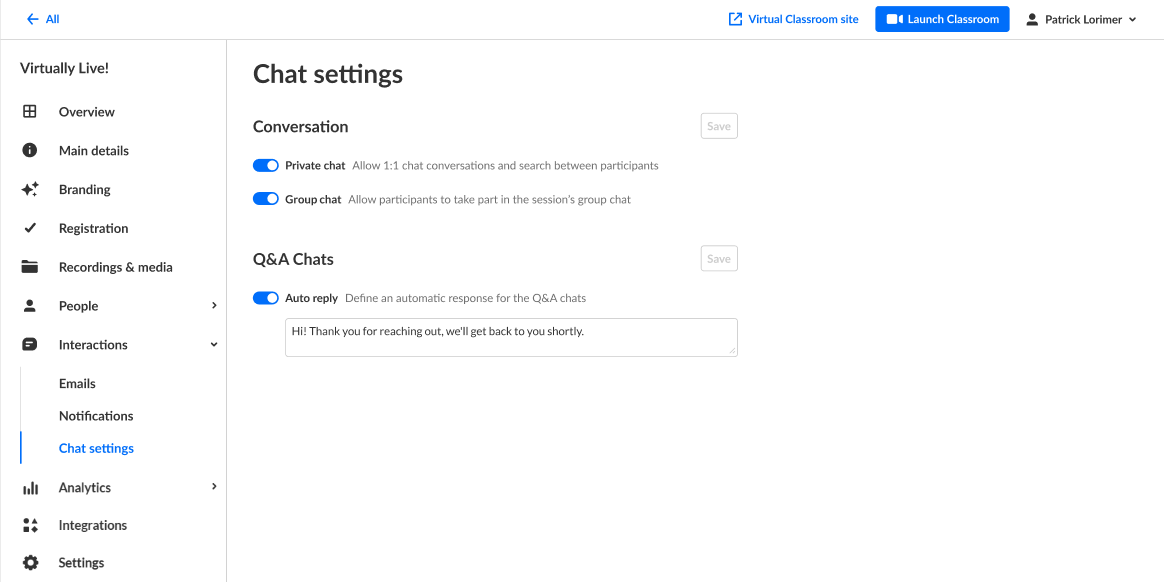
- Choose to enable or disable conversations for your webinar by sliding the button next to the specific conversation type to the left (to disable) or to the right (to enable).
In the example below, we are disabling Group chat. Note once Group chat is disabled, the button turns gray.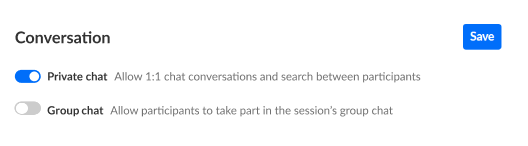
- Once you are finished making your selections, click Save.
Enable auto reply and define an automatic response for Q&A chats
- If Auto reply is enabled, a text box displays.
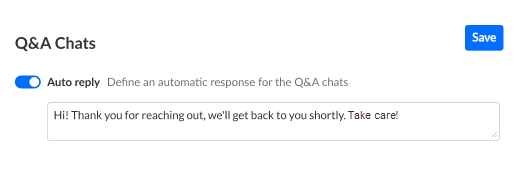
- Type the desired auto reply text in the text box. In the example below, we are setting the auto reply as "Hi! Thank you for reaching out, we'll get back to you shortly. Take care!"
- Click Save.
