About
Kaltura Rooms offer flexible stage access options to help you control who can present during your live sessions. As a host or moderator, you can choose between three stage access modes:
- Everyone on stage
- Join by request
- Invite only
Each mode provides a different level of control and interaction.
Access the settings
Click the settings icon at the bottom of the screen and select Stage access.

Moderators cannot manage stage access settings from mobile. However, mobile users can still respond to stage invitations or request to join the stage (depending on the mode set).
The menu extends to display three options:
- Everyone on stage
- Join by request
- Invite only

You can also manage stage access from the Participants tab in the Chat & Collaboration (C&C) widget. For details about accessing the Participants list and managing participants, see Manage participants in your Kaltura Room.
Stage access modes
Moderators can choose between three stage access modes depending on how interactive the session should be.
Everyone on stage
In this mode, participants can join the stage at any time without moderator approval. Use this when you want an open, collaborative session where everyone can contribute freely.
How it works
- The participant clicks Join stage at the bottom of their screen.
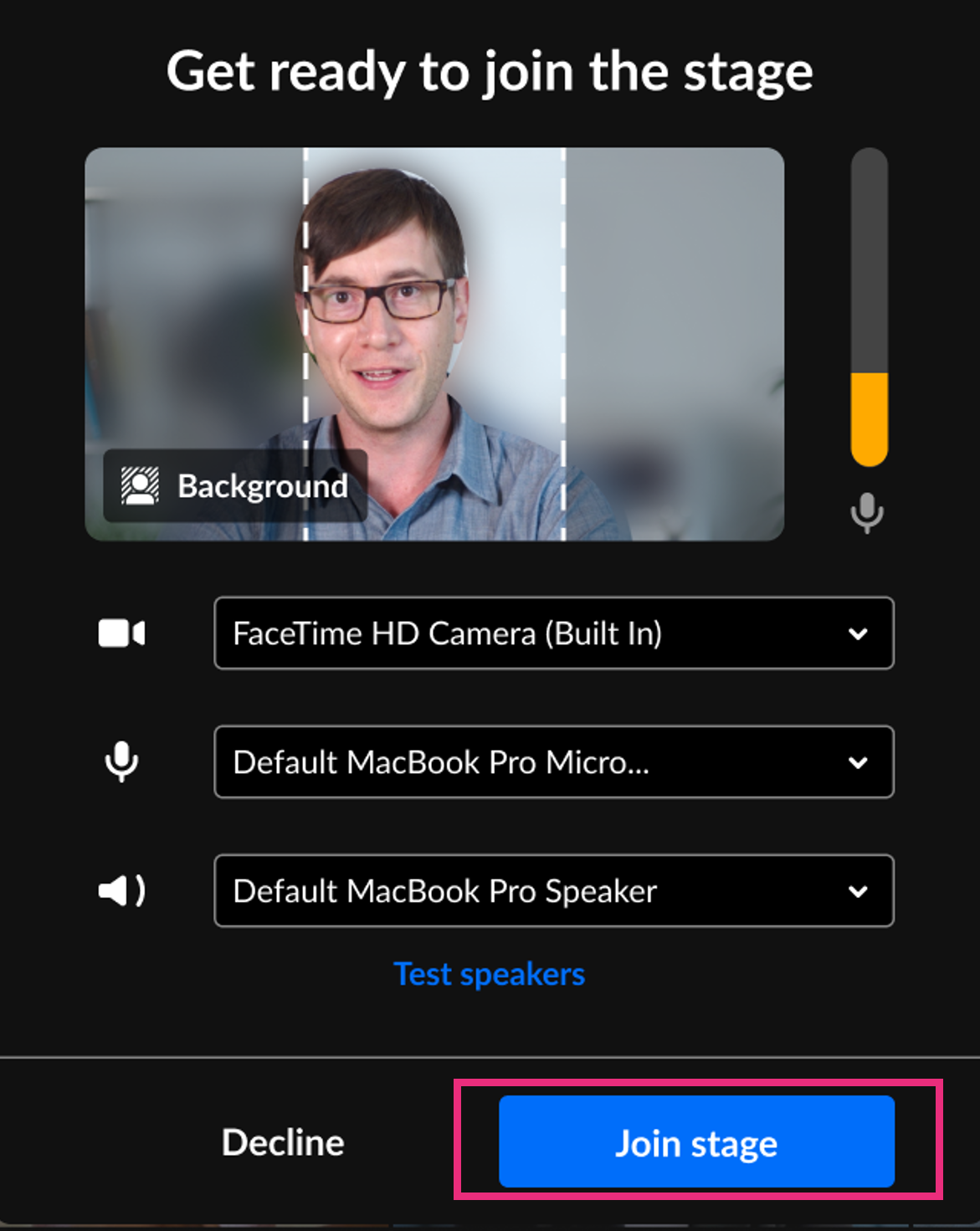
- The participant can configure their devices, then click Join stage to go live on stage.

A 'Get ready to join the stage' notification appears.
Join by request
Participants can request to join the stage and must be approved by a moderator. Use this when you want to moderate who appears on stage but still allow active participation.
How it works
- The participant clicks the Ask to join stage button at the bottom of their screen.
- The moderator receives a request notification, and selects Bring to stage to approve the request, or Decline to deny it.
- If approved, the participant receives an invitation and can configure their devices before joining the stage.


If a request is declined, the participant receives a notification.

Participants who have been declined can request to join the stage again.
Participants can also withdraw their request by clicking Cancel request.

Invite only
Only moderators can invite participants to join the stage. Users cannot request access on their own. Use this when you want full control over who appears on stage.
How it works
- The moderator clicks the Participants icon at the lower right of the screen to open the participants list.
- From the list, the moderator clicks the three dots next to a participant's name and selects Invite on stage.
- The participant receives an invitation to join the stage.
- The participant clicks Join stage and can configure their devices before going live.


